
A New Look for Lightworks.
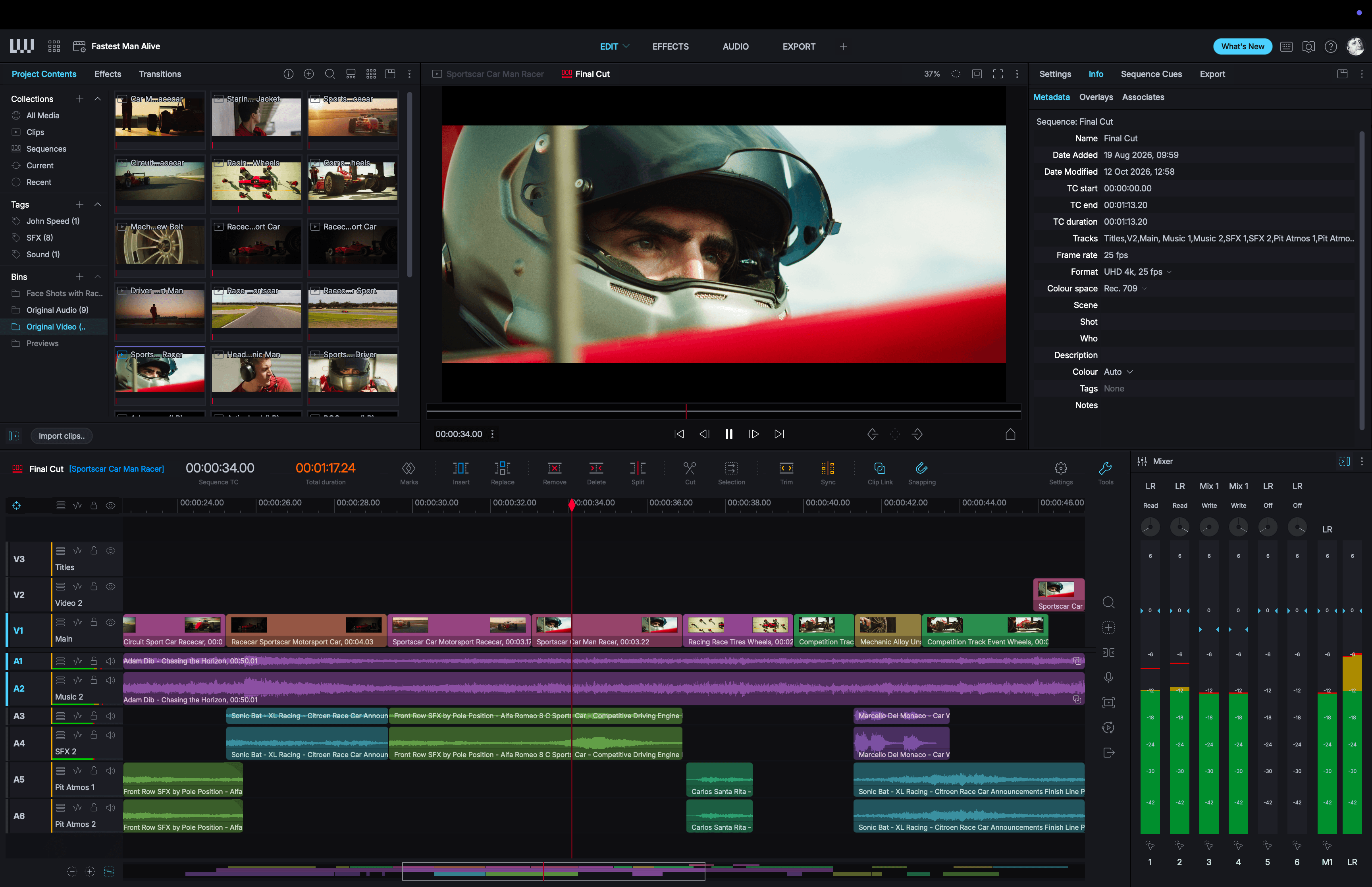
The interface has been rebuilt using a new theme. Panels, menus and tools all draw from one palette, modernising the UI and bringing consistency to Lightworks.
- New SVG icons are sharp at any size, on a laptop or a 4K display.
- Better scaling for high-DPI screens and mixed-monitor setups.
- Inter is the new default font, with a sizing system that keeps text readable however you scale the interface.
- Redesigned cursors on all three platforms.
As well as the application there is also a new logo, a new website, an updated User Portal and a new Knowledge Base (in app and on the website).
Start-up Experience.
Lightworks is now clearer about where you are and what has changed since you last opened it.
- A new splash screen and a shorter Start-up Wizard.
- New Version Available appears in the Project Browser and the project window when there is an update available. Clicking the button downloads the new version, and reminds you to close Lightworks before installing it.
- A What's New button takes you straight to these notes after an update.
- A new option to hold Shift as Lightworks launches starts the application in the Project Browser instead of reopening your last project.

Layouts
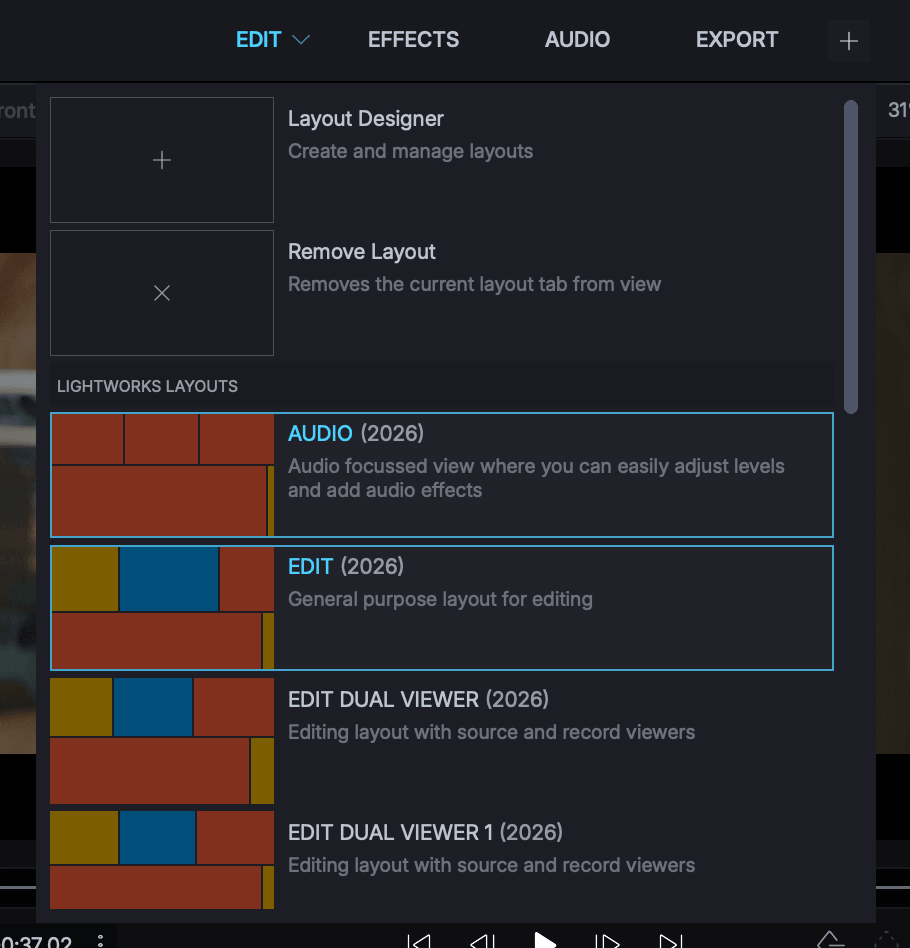
Seven Lightworks layouts have been rebuilt around the new, condensed list of panels, some of which have been unified to show the active Source or Sequence content.
- Up to six layouts can be active at any one time, and you can switch between them like browser tabs. Importantly, your active Source or Sequence follows through each layout change.
- Rather than just enabling and disabling layouts, you can now swap existing layouts in place from their drop-down menu.
- The Layout Chooser shows you a thumbnail preview of the layout before you select it.
- The Layout Designer adds Snap to grid, and lets you duplicate, customise and delete layouts.
- Update saves your current layout panel arrangement and sizes, and Reset restores the original panel layout arrangement and sizes. Note that Lightworks system layouts cannot be overwritten, but you can duplicate them and save them as a new layout.
- Effects and Audio layouts now have independent views of the same sequence. Each keeps its own timeline, keyframe tracks and side menu state.
- Lightworks Layouts from earlier versions have been retired, but will still load if you have them open. They won't be accessible from any menu though.
The Toolbox (Flexible Layout ony)
Every tool in the Toolbox now has a label - Import, Content, Edit, Mixer, Search, Export and In / Out - so you no longer have to guess what the icon is for. Turn them off in UI Preferences > Toolbox if you would rather have the space.
- An Audio Mixer tool opens the new unified Audio Mixer directly.
- In / Out replaces the separate Record and Playout tools with one button and a menu.
- Return Tools to Toolbox gathers up every tool you have scattered across the desktop, for the room you are in.
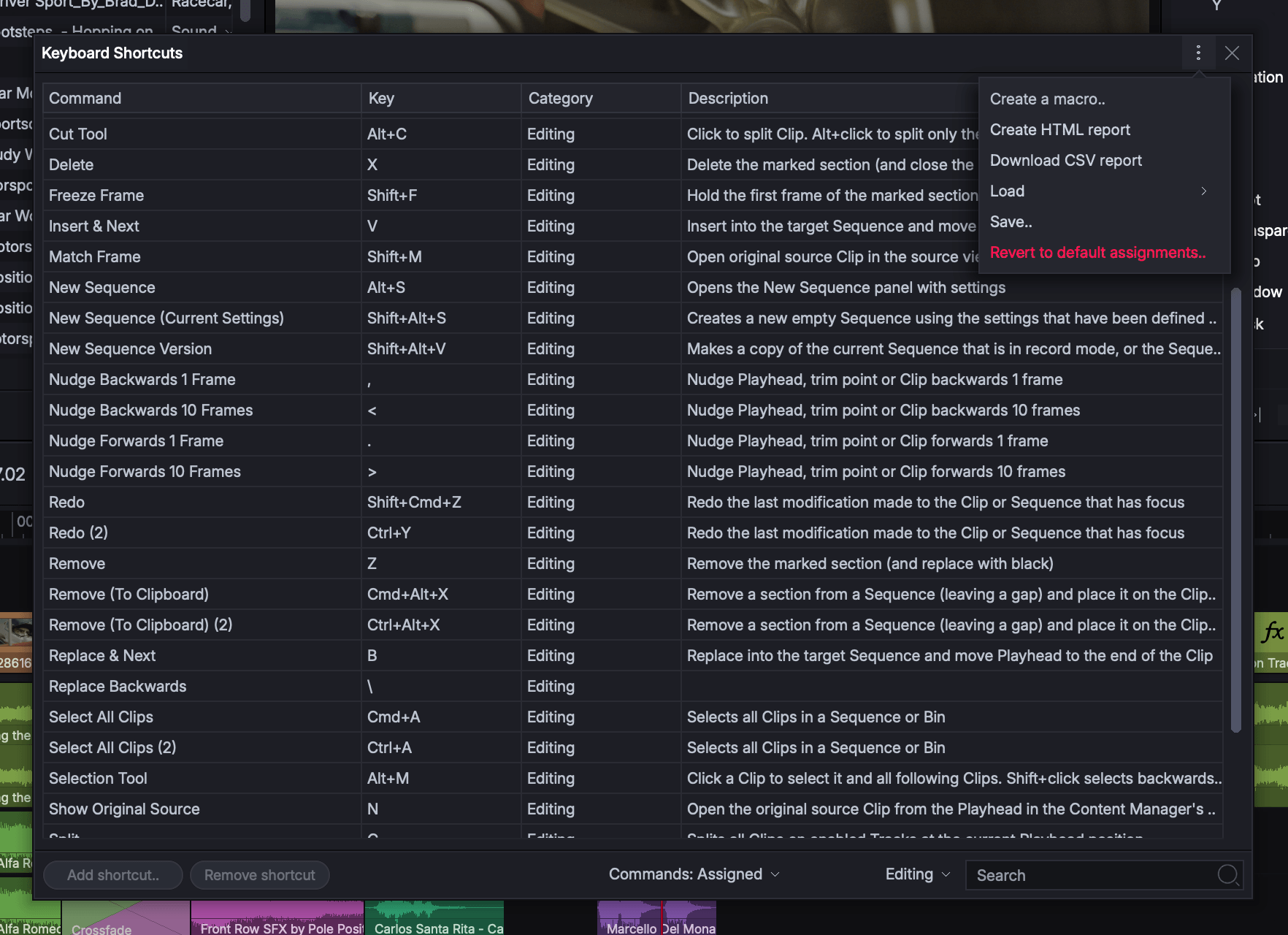
Keyboard Shortcuts.
Every shortcut now has a description and the naming and categories are consistent. You can also now export the current view of keyboard shortcuts as a CSV as well as the HTML report.
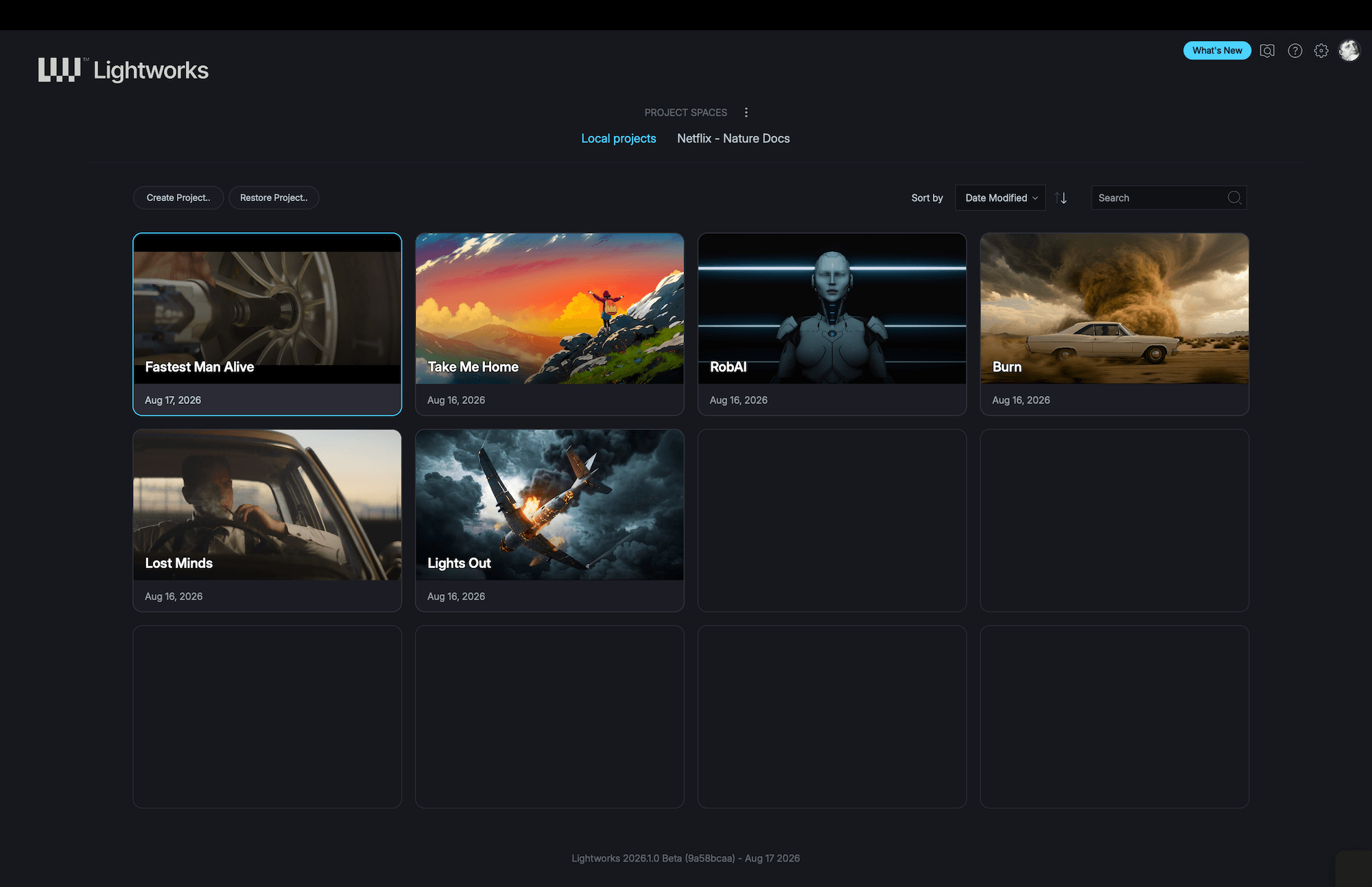
Project Spaces.
Projects can be organised into Project Spaces at any location you wish to use on your system or on network storage - and you can create, rename, hide, unhide and delete Project Spaces for easier project management. Hiding a space takes it out of the browser without removing any project files.
Archiving projects is now available from the Project Browser as well as inside a project.
There have also been improvements to project search and sorting, and redesigned Project Cards.
The Content Manager.
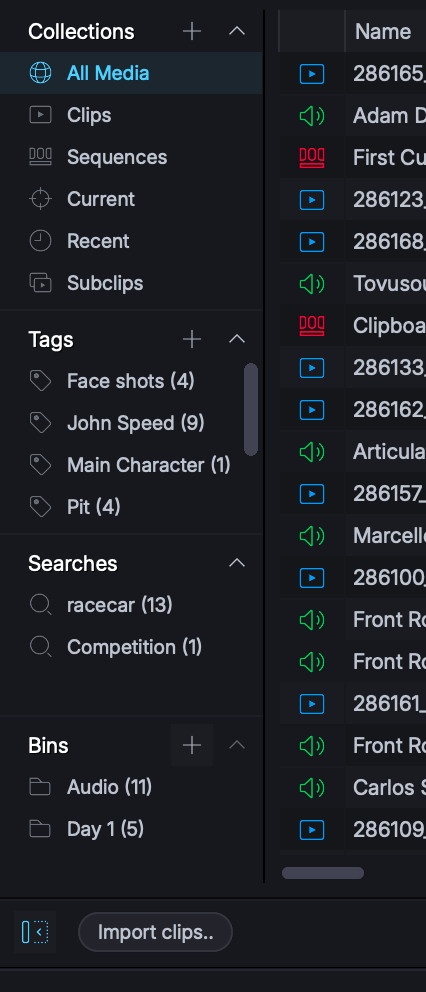
The project navigator (side menu) used to be one fixed column that everything competed for. It is now four sections you can size independently - Collections, Tags, Searches and Bins - and each remembers what space you gave it. A long list of bins scrolls inside its own section instead of squeezing everything else off the screen.
- Drag the splitter in between the navigator and content area to resize.
- View display options controls how the content area is displayed.
- A dedicated New button creates a Sequence, Bin or Multicam bin directly.
Collections.
Collections are filtered views of a project - All Media, Clips, Sequences, Images, Subclips, Recent, and Current (whatever sits under the playhead). You can also build your own collections alongside them.
- Create a new collection from the + button on the Collections heading.
- Create collection from search results turns a search you have just run into something permanent.
- Manage collections allows you to hide or show collections in the navigator.
Searches.
A search can now be saved, updated and used again. By default a saved search is active and will update as the project changes.
- Save Search keeps a search.
- Update Search refines the criteria.
- Make Search Static freezes the results where they are, marked with a pause symbol.
- Make Search Active enables it again and will update based on the project contents.
- Saved searches show their item count, and can be sorted A-Z or Z-A.
Tags.
Tagging can now be done via drag-and-drop. Tag labels show how many clips are tagged.
- Create and manage tags from the side menu.
- Drag and drop clips onto a tag label to apply that tag.
- Select several tags at once to combine them into one temporary view.
Bins.
Bins now show how many items they hold. The + button creates a bin directly - or, when clips are selected, it also offers to make a bin from the selected content.
If a Bin is active, imports will default to that Bin. New Subclips will also be created in a selected Bin.
List View and Tile View
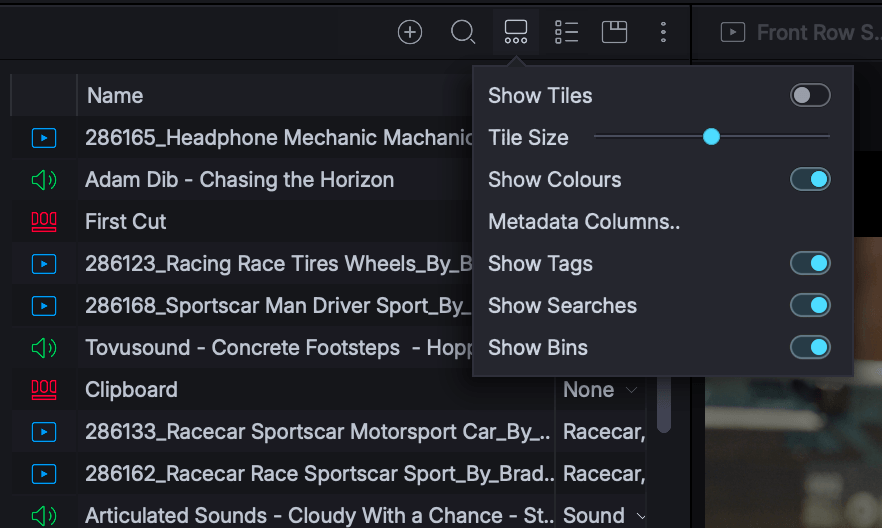
List View can now be a compact, icon-only list: turn Show Tiles off in the View Options menu. Its thumbnail and Name columns stay put while the metadata columns scroll sideways, so you never lose track of which row you are reading.
Tile Size in Tile View can scale to any size unlike the previous 7 sizes. You can use the slider in View Options menu or hold down Cmd/Ctrl and scroll when your mouse cursor is over a Bin.
Show Colours gives the List View icons colours for each media type.
Import.
The Import panel is now explicit about where media is going to land in Lightworks. ADD TO BIN offers 'no bin', an existing bin, or a new bin, which you can name before you import. If a bin is already selected in the Content Manager, that bin is offered first as an import location.
- Close after import can be switched off to keep the panel open after you have made an import.
- Import progress now appears in the Tasks panel from the start, rather than after the first file has been dealt with - and reports accurately.
- Dismissing the Background Tasks panel now keeps it dismissed while the follow-on work finishes.
- Aborting an import shows you the log.
- Stock Footage and Stock Audio are now one Stock Media category.
Conform.
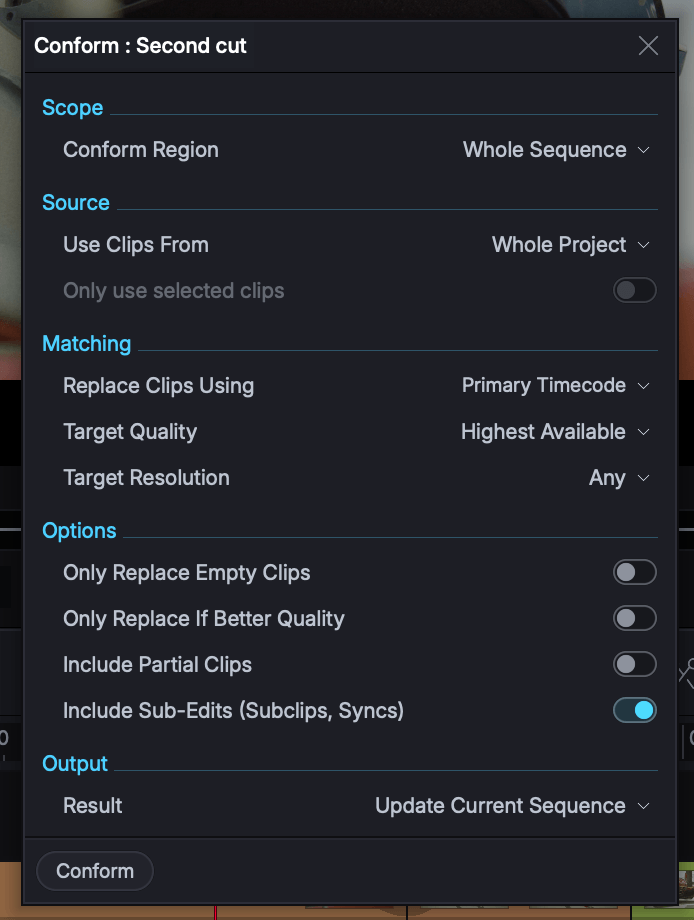
Conform replaces the material inside a sequence with matching clips from elsewhere in the project - used for such things as offline to online workflows. It is now a single panel, with options in different sections:
- Scope - what do you want to conform: the whole sequence, or just a marked region.
- Source - where are the clips you want to use for replacements: the whole project, a specific bin or collection, or only the clips you have selected.
- Matching - how do you want to apply the rules?
- Result - how do you want to display the results: update the sequence you have, or create a new version and leave the original alone.
Relink
While Conform swaps material inside a sequence, Relink reconnects clips if they have been moved. You can use Relink to connect your media to other resolutions or formats, but Relink is primarily about reconnecting your content if it is offline.
The way files are matched for relinking depends on the criteria you set which runs from strict to permissive:
| Criterion | Matches |
|---|---|
| Exact Filename | The same name, ignoring case |
| Ignore Extension | clip.mov to clip.mp4 |
| Ignore Known Suffixes | Recognised endings such as _proxy, _hires, _v2, _4K |
| Ignore Any Suffix | Any trailing _token, such as _v1 to _final |
That last one is deliberately loose, so check what it found before you accept it. Where several files match, choose Use Newest, Oldest, Largest or Smallest.
The Timeline.
Track Headers.
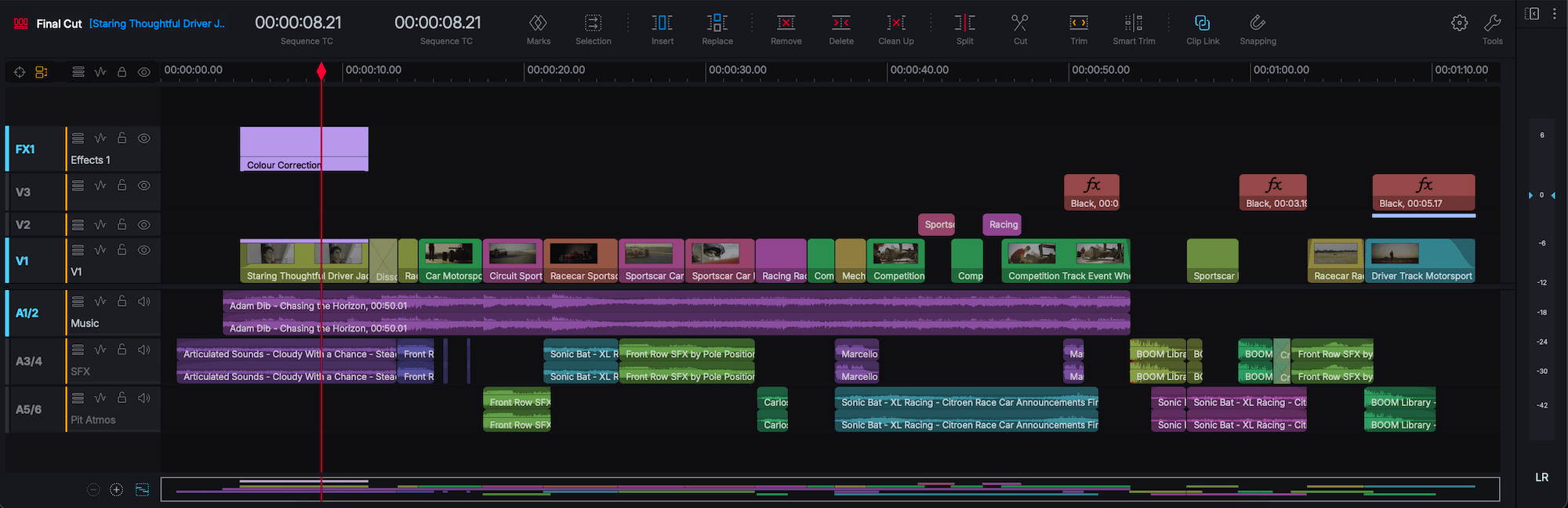
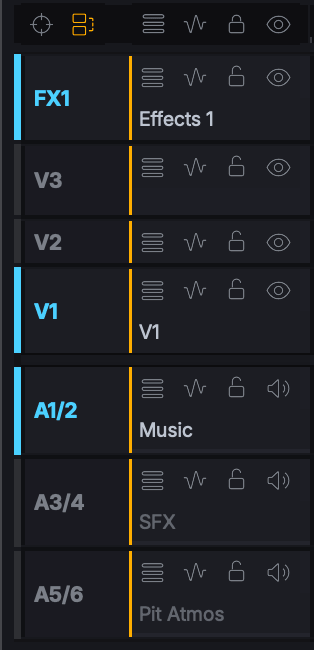
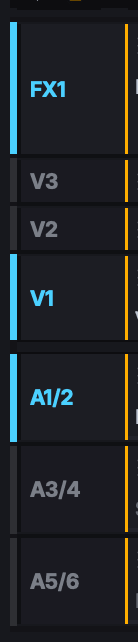
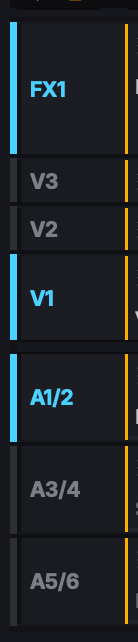
Track headers have been rebuilt, and the abbreviated name down the left - V1, A1 - now does a specific job as well as naming the track. It is the Track Target button, and it decides which tracks an edit uses.
With no targets lit - the default - Insert, Replace, Remove and Delete work across every track, and the trim keys trim the clip under the playhead and its audio. Click a track's Track Target and it lights in the accent colour: from then on, edits use the targeted tracks only, so you can see where an edit will land before you make it. A track that is not targeted is still on and will be held in sync; only locking a track takes it out altogether, and a locked track's label dims.
The rest of the track header includes a Track Minimise button, an editable Track Label, a Track Options menu, Keyframes button, Track Lock button, Track Monitor button, an audio level meter on audio tracks, and an amber Track Sync indicator.
| Track Target | Result |
|---|---|
| Click | Target that track and its grouped tracks (e.g. stereo pairs), or take it out. Taking out the last target goes back to default |
| Cmd/Ctrl+click | Target every other track (inverts the selection). Repeat to go back to default |
| Alt+click | Target that track and leave every other track out of sync (see Trimming). You can Alt+click more tracks to add to the sync group after the first one. |
| Shift+click | Clear the targets and reset to default (your previous state is deleted) |
| Keyframes, Lock and Monitor | Result |
|---|---|
| Click | Toggle that track, and its grouped tracks |
| Cmd/Ctrl+click | Solo it - only that track unlocked or monitored. Repeat to restore |
| Alt+click | Solo but also include associated tracks at the playhead |
| Shift+click | Reset that button across every track and forget the saved state |
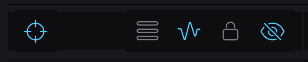
Master Track Controls.
The buttons above the track headers are the master track controls and they act on every track at once. They switch between two states: the default state (nothing targeted, everything unlocked, visible and audible) and your setup (however you have the track buttons arranged).
Click any master button once and your setup is saved and you'll return to the default state. Click again and your setup comes back. You never have to rebuild it by hand. Each master button lights while any track has a button on, so the master Track Target button tells you at a glance that edits are aimed at some tracks rather than all of them.
Shift+click clears that memory of your setup and returns the tracks to their default state. From there, a click flips every track to the opposite - every track targeted, or all locked - which is the quick way to start from everything and take out only the tracks you do not want.
| Command | Shortcut |
|---|---|
| Toggle All - Track Targets | Cmd/Ctrl+1 |
| Toggle All - Track Keyframes | Cmd/Ctrl+2 |
| Toggle All - Track Locks | Cmd/Ctrl+3 |
| Toggle All - Track Monitors | Cmd/Ctrl+4 |
| Track Target V1, V2 | 1, 2 |
| Track Target A1 to A8 | 3 to 9, 0 |
| Show / hide V1, V2 | Alt+1, Alt+2 |
| Mute / unmute A1 to A8 | Alt+3 to Alt+9, Alt+0 |
Track shortcuts follow the track number, not its position on screen, so they keep working however you order your tracks (bottom up or top down).
Track Heights,
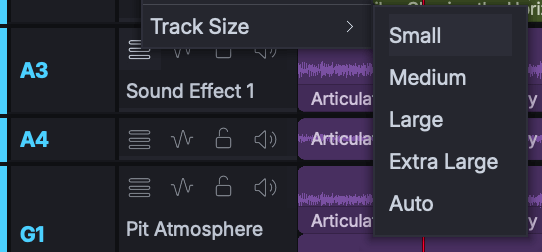
Track heights are now independent for each track, and can be one of a range of fixed track heights, an arbitrary height you set yourself, or Auto, which was the previous default for Lightworks.
- Small, Medium, Large, Extra Large and Auto.
- Resize All Video and Resize All Audio change a whole bank in one action.
- Drag handles on every track for a custom height - at the top of video tracks, the bottom of audio tracks.
- A minimise track strip beside each header. A minimised track is restored to the height you gave it. Shift+click a minimised track area and it will minimise all tracks of that type, video or audio.
Track Operations.
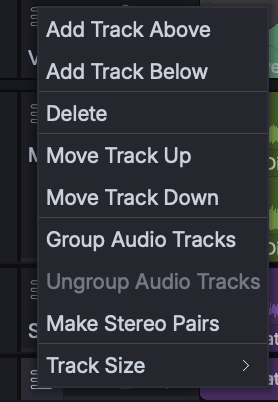
A Track Options menu sits above the tracks, with a smaller subset on each track header.
- Add Track Above and Add Track Below the track you clicked.
- Add Multiple Tracks in one go
- Move Track Up and Move Track Down.
- Delete a track, and Delete Empty Tracks to tidy up a sequence.
- Group Video Tracks and Group Audio Tracks, with ungroup equivalents.
- Make Stereo Pairs.
Drop Zones.
Drop Zones are new, and they remove the need to make tracks before you can use them.
Drop material above the top video track, or below the bottom audio track, and Lightworks makes the tracks for it - as many as the material needs, grouped correctly, so a stereo pair arrives as a stereo pair. You can drag to the drop zone from outside the timeline, or from existing content on the timeline.
The Timeline Toolbar.
The Timeline drop-down menu has mostly gone. Nearly everything it held is now on the timeline header, grouped by purpose, where you can discover it easily:
- Edit tools - Marks, Insert, Replace, Remove, Delete and Split, then the Cut and Selection tools, divided into groups by dotted separators.
- Trim - the Trim menu and Sync, which lights amber when it is on.
- Clip Link and Snapping.
- Tools - a side menu holding Search, New, Clean Up, Voiceover, Conform, Render and Export.
Format, Colour Space, Quality and Settings sit on the header. When the timeline is too narrow for all of the tools, groups collapse into drop-downs rather than being turned off.
Two timecode widgets can be shown at once, and Show Second Timecode in Timeline Settings > Appearance toggles the second one off.
Show Edit Tools and Show Tool Labels are both on by default and both live in Timeline Settings > Appearance. The Effects and Audio timelines keep their edit tools hidden whatever you set here.

The Cut Tool.
The Cut Tool splits clips wherever you click, and its cursor stays visible the whole time the tool is active.
While you hover, the playhead follows the tool and shows you the first frame of the clip your cut would land at.
| Action | Result |
|---|---|
| Click | Cut that clip, plus its linked clips when Clip Link is on |
| Alt+click | Cut only the clip you clicked |
| Shift+click | Cut everything at that position, on every unlocked track |
Grouped tracks always cut together, so a stereo pair is never cut on one side only, and locked tracks are left alone. Show Playhead With Cut Tool and Show Topmost Video With Cut Tool can be toggled in Timeline Settings > Behaviour, and they control what you see in the viewer as you move the cut tool around.
The Selection Tool.
The Selection Tool selects segments across the timeline so you can drag or nudge them together as one block. A single click selects the segment you clicked and everything after it, on every unlocked track.
| Action | Result |
|---|---|
| Click | The clicked segment and everything after it |
| Shift+click | The same, backwards |
| Alt+click | Restrict it to the track of the segment you clicked, and its grouped tracks |
| Shift+Alt+click | The same, backwards |
| Cmd/Ctrl+click | Add or remove a single segment |
Drag, , or . |
Move or nudge the selection |
The Cut and Selection tools are exclusive: while either is active you will not be able to do other edit operations such as trim or create fades.
Marks.
-
Marks has its own button on the timeline toolbar, covering In and Out marks, clearing and swapping, plus Mark Segment, Mark Start of Segment and Mark End of Segment.
Once a region is marked, hold Shift and drag the blue marked region line to slide the whole region along without changing its duration - on the timeline ruler or a viewer's scrub bar. Useful when you have the right length but not yet the right moment.
Clean Up.
Clean Up has two clearly named operations. Merge Redundant Cuts rejoins clips that were split without anything changing across the cut, and Delete Gaps closes black gaps across the sequence. Both respect a marked region if one is present, as well as track targets and Track Lock. It lives in the Tools side menu.
Right-clicking black segments now offers two different choices, and the difference matters. Delete black segment removes the black on that track alone. Delete gap across all tracks closes the gap right through the sequence, so it is greyed out when there is no gap across all tracks to close.
Insert gap does the opposite, from the right-click menu of a clip or a black segment. It puts five seconds of black in at the playhead, splitting a clip if the playhead is over one. All unlocked tracks are included for Insert Gap so nothing falls out of sync. Locked tracks are left alone. There is also a keyboard command, Insert Gap, but no default keyboard shortcut is assigned until you give it one.
Snappping.
Snapping is new, and works wherever you position material: dragging, dropping in from a bin or viewer, trimming, nudging, and choosing where the Cut Tool cuts. A green indicator shows you when something snaps in alignment.
Drag a clip and it snaps on either edge. If snapping one edge to a cut happens to land the other edge exactly on another, both are marked - which tells you at a glance that the clip is an exact fit for the gap.
Toggle it with Cmd/Ctrl+N, and hold Cmd/Ctrl while dragging to override whatever state you are set to.
Clip Link.
Clip Link decides what counts as one clip for selection and trimming, and it is on by default.
With it on, clicking a clip also picks up the clips linked to it on other tracks - usually a video clip and its audio - so they select, move and delete together, and clicking the start or end of a clip to trim it unjoins the same end of its linked clips too. To select or move just the one you clicked, hold Alt. With Clip Link off, Alt does the opposite and brings the linked clips in. Trimming uses Alt differently: it unjoins just the track you clicked (see Trimming).
Links are now yours to make and break, and they are remembered with the sequence. Select two or more clips and choose Link, or press Cmd/Ctrl+L. This now enables linking of other items as well, such as music beds or subtitles. Linked clips do not have to overlap any more.
Lightworks creates links as you edit. Anything laid into the timeline as one action is linked, but material laid over clips already in the sequence never automatically links - so a cutaway does not silently become part of the clip beneath it. Every paste of copied material gets links of its own, so a copy never joins the original. Cut material keeps its links the first time you paste it, because it is the same material in a new place; paste it again and that copy gets its own.
A chain icon marks any clip that has a link partner. You can turn the icon off with Show Clip Links in Timeline Settings > Appearance.
Grouped tracks are additional to Clip Link. Grouping tracks is a statement that they are one thing, so a stereo pair always travels together.
Segments.
Segments have been reworked completely:
- Refined backgrounds, and text in constant white.
- Label fields, showing clip name and duration by default.
- Lighter waveforms, with a better contrast control.
- Any speed other than 100% shown after the labels.
Activate / Deactivate switches a clip off in place rather than removing it: video hidden, audio muted, trims and effects preserved, with a Deactivated label so the state is obvious. You can deactivate and activate clips using Alt+D, or the right-click menu.
Cut, Copy and Paste.
The clipboard commands have been brought into line with one another, so the same action over the same material always does the same thing.
- Cut / Copy works from your selection or a marked region.
- Paste puts material back on the tracks it came from. Which tracks the clipboard holds was decided when you copied, so track targets have no bearing on Paste.
F and Cmd/Ctrl+V insert the pasted content and then moves the playhead to the end of what was pasted (Clipboard Insert & Next) - so pressing them again lays the next copy straight after the first.
G and Cmd/Ctrl+Alt+V replace the pasted content and then moves the playhead to the end of what was pasted (Clipboard Replace & Next).
Nudging.
Nudging now moves selected clips as well as the playhead, and it has keys of its own so the arrows continue moving the playhead even if you are nudging clips.
| Action | Key |
|---|---|
| Nudge one frame | , / . |
| Nudge ten frames | < / > |
| Nudge by a typed amount | Alt+, / Alt+. |
| Move the playhead one / ten frames | Arrows / Shift+arrows |
Keyframes on the Timeline
Keyframing video on the timeline is new, and it is something you switch on per track rather than a separate mode. Each track header has a Keyframes button, with a master button for all of them.
Turning keyframes on (for audio levels) used to prevent any other editing operations from taking place. Now trimming, dragging, selecting and adding fades all continue to work whilst keyframes are turned on.
- Keyframe any parameter directly on a segment: add, move, delete and multi-select nodes.
- Curve types per node - Linear, Smooth, Ease In, Ease Out and Ease In and Out - so one graph can mix them.
- Audio level lines use the same switch, and a segment's start and end points are now editable nodes in their own right. An audio clip can ramp from silence at its head to full at its tail.
- Each timeline view remembers its own keyframe tracks.
- The segment label reads effect > parameter while you are editing, and clicking it opens the parameter and curve menu.
- Expand Effects and Collapse Effects replace Unfold and Fold.
| Action | Result |
|---|---|
| Click the line | Add a node |
| Drag a node | Move it |
| Cmd/Ctrl+drag | Adjust time only |
| Alt+drag | Adjust value only |
| Shift+drag | Rubber-band a group - a plain drag still selects clips |
| Click the segment label | Parameter and curve menu |

Speed.
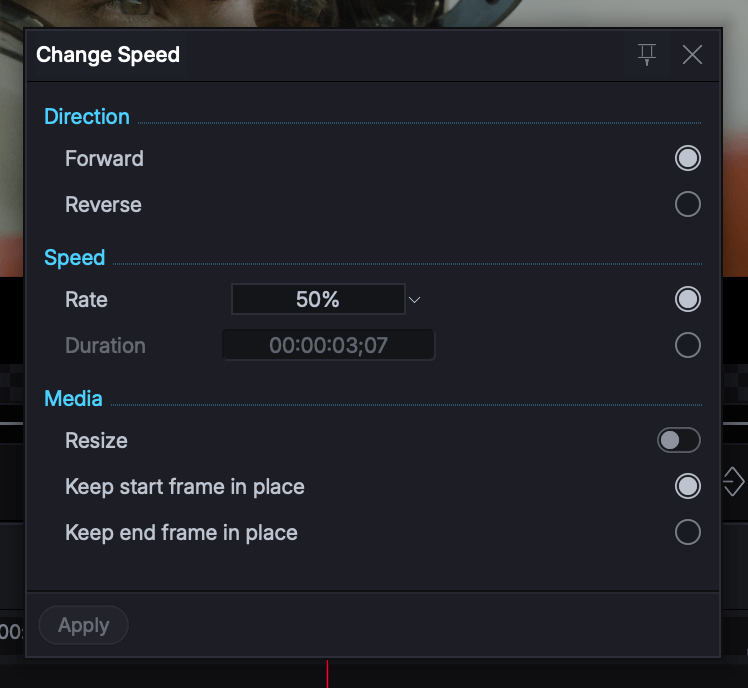
Speed has been reworked around a new panel. Reverse works properly, the frame you want to keep is no longer tied to whether the clip resizes, and you can drive the change from a preset, a typed percentage or a duration. The legacy speed controls at the end of the timeline, reached with the Advanced button, are unchanged.
- A new Speed panel.
- Reverse speed works without producing black frames.
- Direction - Forward or Reverse - is independent of the rate you type: entering a negative or positive percentage sets it for you.
- Enter a preset rate, a manual percentage Rate, or a Duration.
- Preset rates of 25%, 50%, 100%, 200% and 400%, alongside your recently used speeds.
- Media options are independent of the rate: Resize the clip or not, and Keep start frame in place or Keep end frame in place.
- Any speed other than 100% appears on the segment after the segment text labels.
- Forward speed presets have been added to the timeline right-click menu - Slow - 25%, Slow - 50%, Normal - 100%, Fast - 200% and Fast - 400% - with Custom opening the Speed panel.
Scrolling, Zooming.
Scrolling and zooming have been rebuilt. Precision scroll is supported on all three platforms (where the hardware supports it), so a modern mouse or trackpad gives smooth, fine-grained movement - and anything that does not report it falls back to the old behaviour, so nothing is lost.
- Horizontal scroll or swipe pans left and right.
- Vertical scroll moves the bin or tracks up and down.
Cmd/Ctrl+scrollzooms smoothly around the playhead.- Mouse Wheel preference in Timeline Settings decides what a plain scroll does over the tracks: Vertical Scroll, Frame Nudge, or Previous / Next Event.
The Timeline Map.
The Timeline Map replaces the scrollbar and gives a bird's-eye view of the sequence and covers subtitle tracks, video tracks and audio tracks. Drag the edges of the white box to zoom and change the view on the timeline and drag the centre of the white box to move through the edit. You'll see the timeline update as you drag. Toggle the timeline map off if you don't want it with the button to the left of it, which will toggle the scrollbar on.

Timeline Search.
The Search Sequence button in the timeline's side menu gathers four ways of finding material and its relationships - where a frame came from, what is under the playhead, everywhere a clip has been used, and which bins hold the sequence.
- Match frame opens the visible source clip at the current frame in the Source viewer. It respects Track Monitor status, so you get the clip you are actually looking at.
- Current clips reveals every clip at the playhead in the Current collection, listed in the same order as the tracks on the timeline.
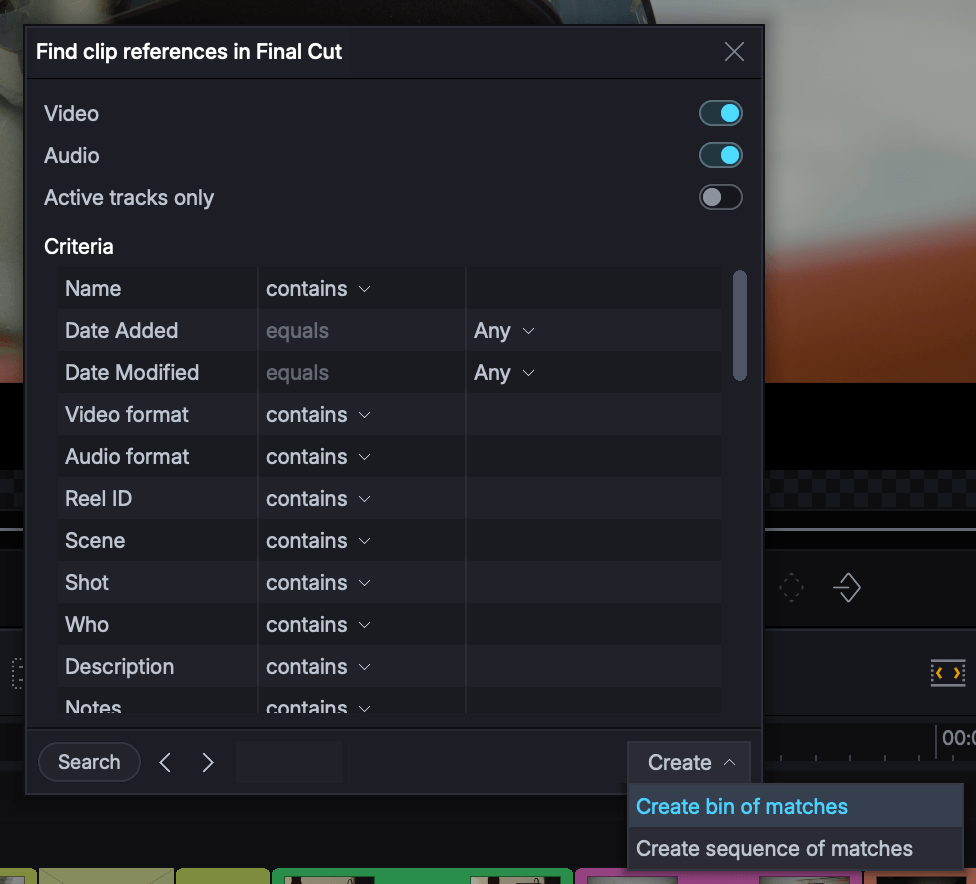
- Clip references opens Find clip references, a full search of the sequence: choose Video and Audio tracks or Active tracks only, narrow the search by criteria such as effects, media, active state, cues and subtitles, then step through the results with Jump to earlier match and Jump to next match. The matches can be turned into a bin with Create bin of matches, or into a sequence with Create sequence of matches.
- Bins containing sequence lists the bins that hold the current sequence.
Trimming Settings.
Trimming.
Trimming has been rebuilt from the ground up. It has always been one of Lightworks' great strengths, and in v2026.1 it is faster, more predictable, and works the same way whether you use the mouse, the keyboard or a menu. Learn a few keys and clicks and you will be making frame-accurate trims quicker than ever. The Trimming article in the Knowledge Base covers everything in detail.
Unjoin, move, join.
There are still two ways to trim. Click and drag is quick, but for frame accuracy you often have to zoom in. Unjoin is where Lightworks really shines, and every trim follows the same steps:
- Unjoin - open the cut points you want to trim.
- Move - move the trim until the cut is on the frame you want.
- Join - the trim is done.
- Unjoin again - press
Tabto unjoin the last trim for further adjustments.
The term Unjoin comes from film editing, where an editor would literally unjoin two pieces of film at the splice, lengthen or shorten one, and join them back together. Lightworks uses the same principle.
Unjoining with the mouse.
Click what you want to trim. Hover near the start or end of a clip, or the cut between two clips, and white trim preview brackets show what that click will unjoin before you click.
- Click the start or end of a clip to trim it, or the cut between two clips for a Move Cut.
- Click the start of a clip, then its end, to Slip it.
- Click the end of the clip before it, then the start of the clip after it, to Slide it.
- Click an unjoined cut again to rejoin it.
- With Clip Link on, linked video and audio unjoin together.
Hold a modifier key as you click, and the white brackets change straight away to show what it will do:
| Hold | What happens |
|---|---|
Alt |
Trims only the track you clicked. No other tracks move. |
Cmd/Ctrl |
Drag In Black - shorten the clip and black fills the space; lengthen it and it replaces the black next to it. No other tracks move. |
Shift (and drag) |
Insert Black - adds black at the start or end of the clip instead of trimming it, on every track, so everything stays in sync. |
Drag In Black and Insert Black can be reassigned in Timeline Settings > Actions.
Unjoining with the keyboard.
The keyboard is the fastest way to trim. Put the playhead over the clip you want and press a key. Q, W, E and R sit in a row, in the same order as the ends they unjoin, so your left hand can unjoin any trim without looking down:
| Key | Unjoins |
|---|---|
Q |
The end of the previous clip |
W |
The start of the current clip |
E |
The end of the current clip |
R |
The start of the next clip |
U |
Move Cut - the nearest cut to the playhead |
Y |
Slip the current clip |
T |
Slide the current clip |
Slide, Slip and Move Cut can also be built from the other four keys - W & E for a Slip, Q & R for a Slide, Q & W or E & R for a Move Cut - in any order. Press the same key again to rejoin that cut.
Track Targets decide what is trimmed.
The new Track Target buttons (V1, A1, A2 down the left of the track headers) decide which tracks a trim changes, with one simple rule:
Targeted tracks trim their clips. Tracks that are not targeted trim black.
A left or right side trim will require the content after it to move - often called 'ripple'. When this happens, other tracks also need to move so that they stay in sync. A targeted track has its clip trimmed. A track that is not targeted uses the black on that track instead, so that it stays in sync.
- No Track Targets lit (the default) - a trim key trims the top clip under the playhead, plus its audio.
- One or more lit - a trim key trims the clips on those tracks.
- While unjoined, turn a track target on and that track's clip is trimmed too; turn it off and the track trims black instead. The number keys
1to0do the same. You can change your mind about which tracks are trimmed during the trim session. - When you join the trim, the Track Targets go back to how they were before.
New ways to move a trim.
- Trim to the playhead. With Trim when playing off, play with
J,KandL, or drag the playhead, to find the frame you want. Then pressAto bring the trim back to the playhead, orSto take it forward. It is a quick way to land a trim on an exact frame, and particularly useful for a Move Cut. - Trim to the next or previous event. If you have not moved the playhead away from the trim,
AandSjump the trim back or forward to the previous or next cut, cue or mark. - Nudge by an exact amount. The arrow keys nudge the trim one frame, and
Shiftwith the arrows ten frames.Alt+.andAlt+,nudge it forwards or backwards by a number of frames you type, and Lightworks remembers the number for next time. - Preview before you join.
Alt+Spaceplays the trim with pre-roll and post-roll.
See how far a trim can move.
As soon as you unjoin, a yellow line appears along the top of the timeline ruler, showing how much material is available on each side of the trim - how far you can move it back, and how far forward. If several cuts are unjoined, it is limited by whichever one has the least material. For Slip and Slide trims it is shown on either side of the clip.
As you move the trim, the ruler shows how far you have moved it, in seconds and frames, and Trim limit appears on a side with no more material.
Join, and unjoin again, with Tab
Tab to join and finish the trim. Press Tab again and your last trim unjoins exactly as you left it, Track Targets included - a great way to make one more small adjustment after watching it back. If you unjoined but changed nothing, when you close the trim, the playhead goes back to where it was originally.
Sync.
Sync decides what happens to everything after a trim point. It is on by default.
- Sync on - everything after the trim moves to fill the space or make room, on every track, so everything stays in sync.
- Sync off - nothing else moves. Shorten a clip and black is left in its place; lengthen it and it covers the black next to it - known as Drag in Black.
Turn it on or off with the Sync button on the timeline toolbar, which lights amber when it is on, or with the shortcut key directly above Tab. To temporarily turn on Drag in Black without turning off the Sync Button, hold Cmd/Ctrl as you click on a cut point.
Move Cut, Slip and Slide never ripple, so the Sync button makes no difference to them.
The amber Track Sync strip on each track header shows which tracks will move to stay in sync. If there is no Track Sync indicator, the contents of that track will not move (e.g. a locked track).
Trim Shortcuts.
| Key | What it does |
|---|---|
Q / W / E / R |
Unjoin the end of the clip before / the start of the clip / the end of the clip / the start of the clip after |
U |
Move Cut |
Y |
Slip |
T |
Slide |
| Left / right arrow | Nudge the trim one frame |
Shift + left / right arrow |
Nudge the trim ten frames |
Alt+. / Alt+, |
Nudge the trim forwards / backwards by a number of frames you type |
1 to 0 |
Turn Track Targets on or off, even while unjoined |
A / S |
Move the trim to the playhead, or to the previous / next event |
Alt+Space |
Preview the trim |
Tab |
Join the trim, or unjoin the last one again |
The key above Tab |
Turn Sync on or off |
Trim Settings.
Worth knowing. Trim when playing is under the sequence viewer; the rest of the trim preferences are in Timeline Settings.
- Trim when playing - whether
J,KandLmove the trim as they play. - Click To Unjoin (Trimming) - turn it off if you only want to click and drag. Keyboard and menu trims still work.
- Allow Trims To Overwrite Segments - lets a trim run over the next clip instead of stopping at it. Off by default.
- Click and Drag - Natural Trim and Unjoin - Natural Trim - whether dragging moves the segment or the cut point on screen. It changes how the trim looks visually on the timeline, not what is trimmed. Both off by default.
The Reframe Effect.
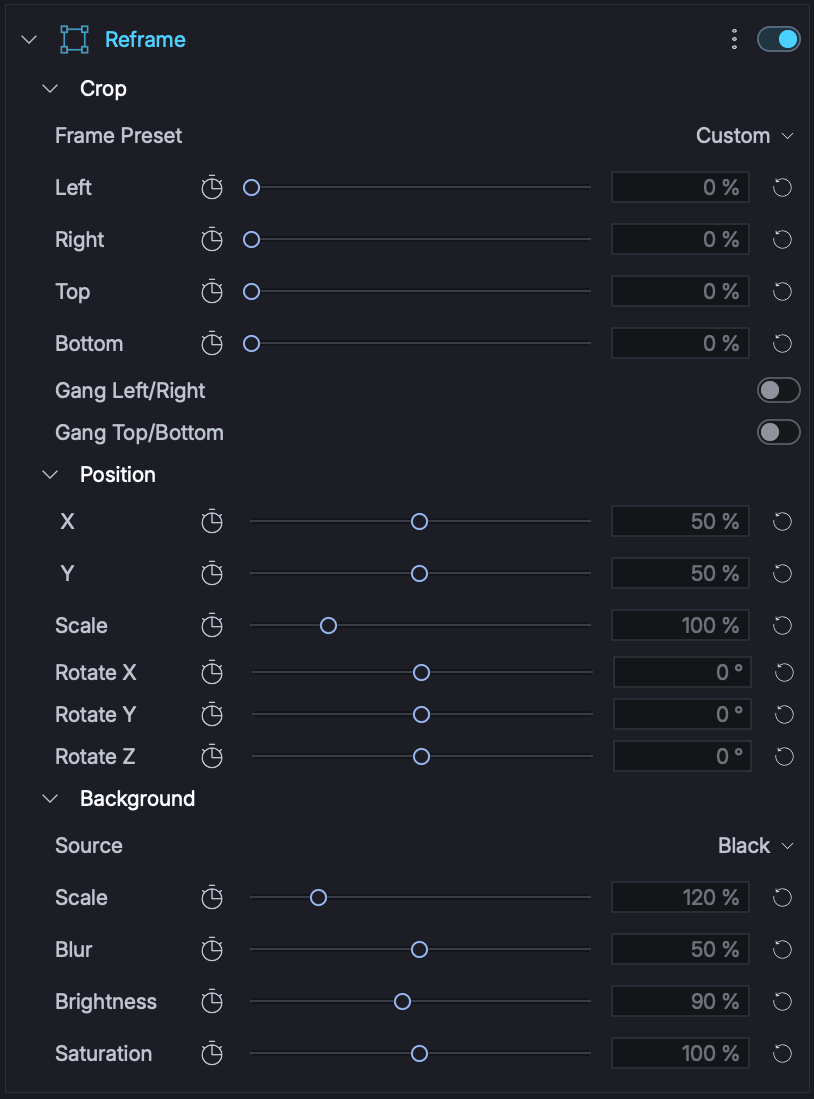
Reframe is a new effect for delivering one edit in more than one shape. Choose the frame you are delivering to, reposition and resize the picture inside it, and decide what fills the space around it - black, a blurred copy of the same clip, or another clip entirely.
Presets cover the usual film and television ratios along with the portrait, square and landscape shapes that social media platforms expect. Everything keyframes, so a reframe can follow the action if needed.
Transform 3D.
Applying Effects.
Double-clicking an effect in the Effects browser, pressing Apply, or using a keyboard favourite is not aimed at a particular clip, so it now follows the track targets like other edits. Video effects go to the top-most targeted track with a clip under the playhead, and audio effects to the first targeted audio track with a clip - with nothing targeted, every track counts. Untargeted and locked tracks are left alone. Dragging an effect onto a clip, applying it to selected clips, and pasting all work as before.
Audio effects belong to clips, so they are no longer offered for a Marked Region. Audio crossfades still use marks.
Effects Settings.
The Effects Settings panel has been reorganised for working on a stack of effects rather than one at a time. Effects can be reordered, categories carry icons for faster scanning, values can be shown as percentages or pixels, parameter value boxes respond to the scroll wheel, and Show only active clip stops other tracks' effects cluttering the list.
If you have multiple clips under the playhead, you can now select the segment you want to work on and its effects settings panel will be displayed.
Legacy Transform and Framing effects still work where they are already used, but are no longer offered as new effects.
Copy and Paste Effects.
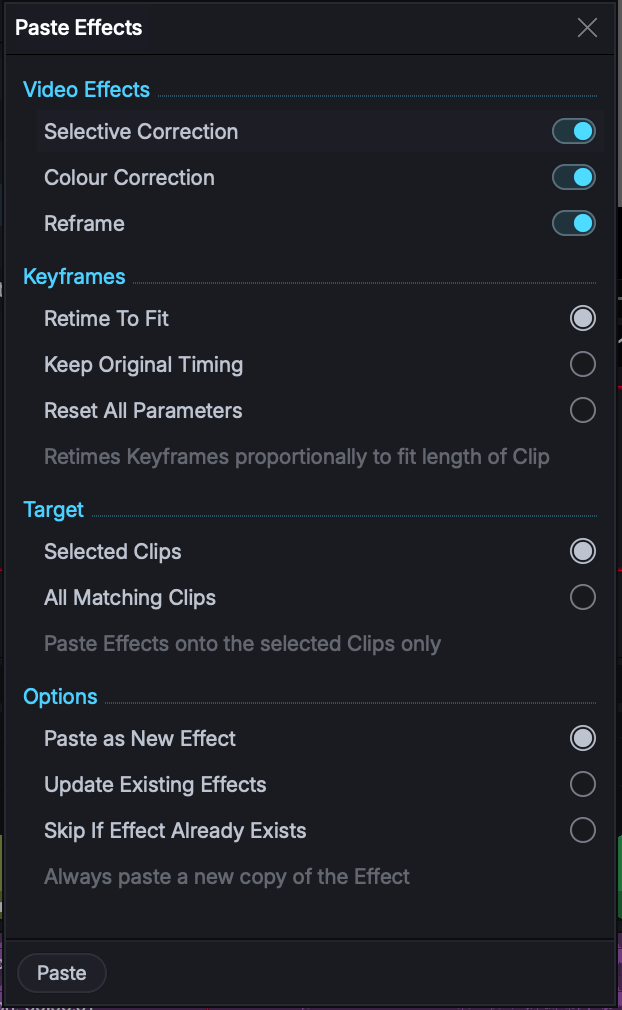
Copying effects between clips now asks the two questions that actually matter: what should happen to the keyframes, and what should happen if the target already has that effect.
- Copy effects from video and / or audio clips, choosing which effects to paste and how to paste them.
- Keyframe options when pasting:
- Retime To Fit - retimes keyframes proportionally to the length of the target clip.
- Keep Original Timing - keeps the absolute keyframe timing of the original.
- Reset All Parameters - pastes without keyframes.
- Paste options:
- Paste as New Effect - always paste a new copy.
- Update Existing Effects - replace the parameters of an existing effect of the same type.
- Skip If Effect Already Exists - leave the target alone if it already has that effect.
- You can paste on to more than one clip by selecting multiple clips as targets.
The Keyframes Panel.
The Keyframes panel has been updated for performance and for control over individual nodes, and the graph is now sized to suit the parameter rather than filling the panel.
- Drag the playhead in the graph to see the viewer update live and also while dragging nodes.
- Apply curves to individual nodes so one graph can mix curve types.
- Comprehensive curve support from the right-click menu: Linear, Smooth, Ease In, Ease Out and Ease In and Out.
- The default graph height has been reduced, and can be changed with the slider in the panel menu.
- Dragging keyframes performs better.
- Nodes and curves cannot be dragged beyond the extents of a graph.
- Context menu parameter lists show full parameter names, for example Position X rather than X.
- When effects are expanded to FX tracks, FX Settings shows only the FX track rather than the default effects on the video tab.
Masks.
- Choosing a rectangular or elliptical mask creates it immediately at a default size, ready to be positioned and resized, rather than having to be drawn out first. Complex shapes are still drawn point by point.
- Select and drag a mask from anywhere inside the shape, not only from its centre point.
- Mask overlays can be toggled in the viewer with Show Mask Overlays / Hide Mask Overlays:
- On: overlays stay visible.
- Off: overlays appear only when the pointer is over the viewer, or while you are adjusting an effect that has a mask.
Guides and safe areas
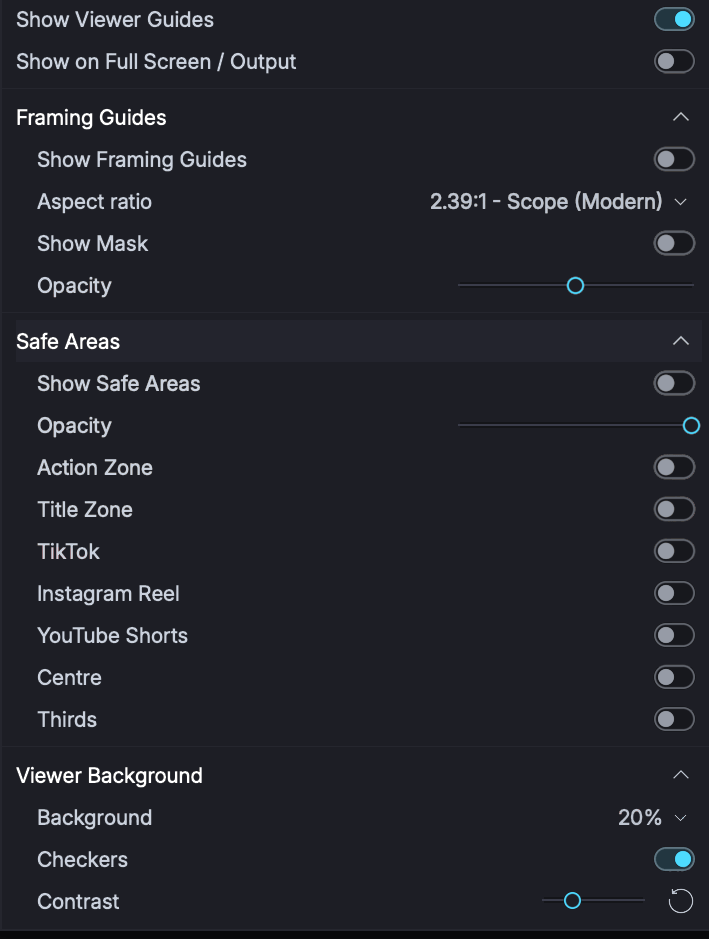
Guides cover broadcast and social delivery: Action and Title zones to SMPTE ST 2046-1, safe areas that account for the interface on TikTok, Instagram Reels and YouTube Shorts, and framing guides for the standard film, television and social shapes. Show Mask darkens everything outside the frame you are aiming at, with an opacity slider.
Guides help you decide the framing. Reframe is what makes it real on export.
Viewer Zoom and Pan.
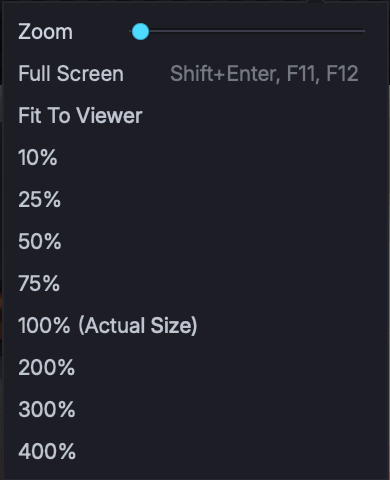
Zoom runs from 10% to 400%, during playback as well as paused, and both Source and Sequence viewers have their own independent zoom controls. Because masks and overlays respond to mouse clicks too, panning uses Cmd/Ctrl+drag so regular clicks can still control any onscreen effects controls.
Cmd/Ctrl+scroll zooms in and out of the viewer image, during playback or paused.
Cmd/Ctrl+double-click toggles between your zoom level and Fit To Viewer.
Viewer Background.
Six background tones, plus Checkers for judging transparency - with a contrast control for the chequerboard.
Playback and Viewer Controls.
- Playback Quality has moved into the viewer menu, as well as the timeline menu.
- A Subclip button on the Source viewer.
- The inactive viewer dims its controls, so the active one is unmistakable.
- Cue markers on the scrub bar open their details when you click them, and are drawn at twice the size so they can actually be clicked.
- Preview plays around the playhead with pre-roll and post-roll -
Alt+Space. You can change this in Timeline Settings > Behaviour, but by default they are set to three seconds either side of the playhead.
The on-screen player controls (Flexible Layout only)
The Info Panel.
Metadata, overlays, associated assets and the source timeline are now tabs in one unified Info Panel, which always follows whatever you are working on.
Click a clip on the timeline and the Info Panel shows its source clip, just as selecting it in a bin would - no more parking on it and opening the original to find out about it. With Clip Link on, the segment you actually clicked decides, so you can look at the video and then each linked audio clip in turn. Click away, or clear the selection, and the panel goes back to the sequence.
A Source: or Sequence: name under the tabs tells you which one you are looking at.
Overlays.
Burnt-in timecode is now called Overlays, and it does more than timecode: up to four custom text labels, a date and a frame count, each positioned by anchor point with adjustable opacity.
One Audio Mixer.
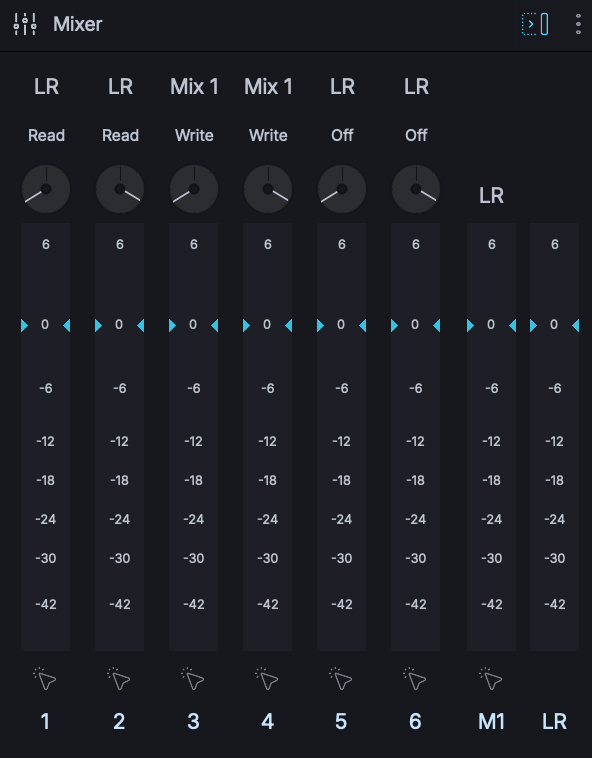
There is now one Audio Mixer for source clips and sequences, and by default it follows whichever has focus - so the mixer in front of you always belongs to the audio you are listening to. It can be expanded, and its size is remembered.
A new Monitor mode shows just the meters for a smaller footprint.
Fader Automation.
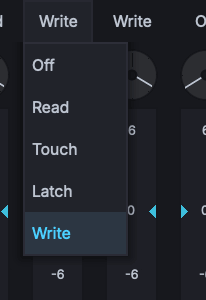
Fader automation is new, with five automation modes.
| Mode | What it does |
|---|---|
| Off | The default - no automation, exactly as Lightworks behaved before. Faders just affect final output volume. |
| Read | Follows the automation; moving a fader overrides any automation temporarily, but doesn't overwrite it. |
| Write | Records level automation continuously from the moment playback starts |
| Touch | Records level automation while you 'touch' a fader, then hands back to the existing automation when you let go |
| Latch | Records level automation from first touch until you let go of a fader, then it remains at that level until playback stops |
Off is the default deliberately: nothing about your existing mixes changes until you decide to use automation.
Mixes and Routing.
Three independent mixes - Mix 1, Mix 2 and Mix 3 - plus the LR master are now available in Fixed layout, with routing toggled per channel.
Stereo Pairs and Groups.
Stereo pairs and grouped tracks share fader and automation moves, and an effect added to one segment in a group is added to all the other segments in that group. Ungrouping keeps each track's effects.
A stereo pair appears as one tab - A1/2, matching its track header - in Effects Settings and the routing panel, so you work on the pair rather than on each side. Adding, replacing and removing an effect changes both sides, and the same goes for grouped tracks when Link Grouped Audio Effects is on. Reordering effects keeps a stereo pair in step. If a pair's effects have got out of step, in an older project for example, both tabs are shown so nothing is hidden.
Export.
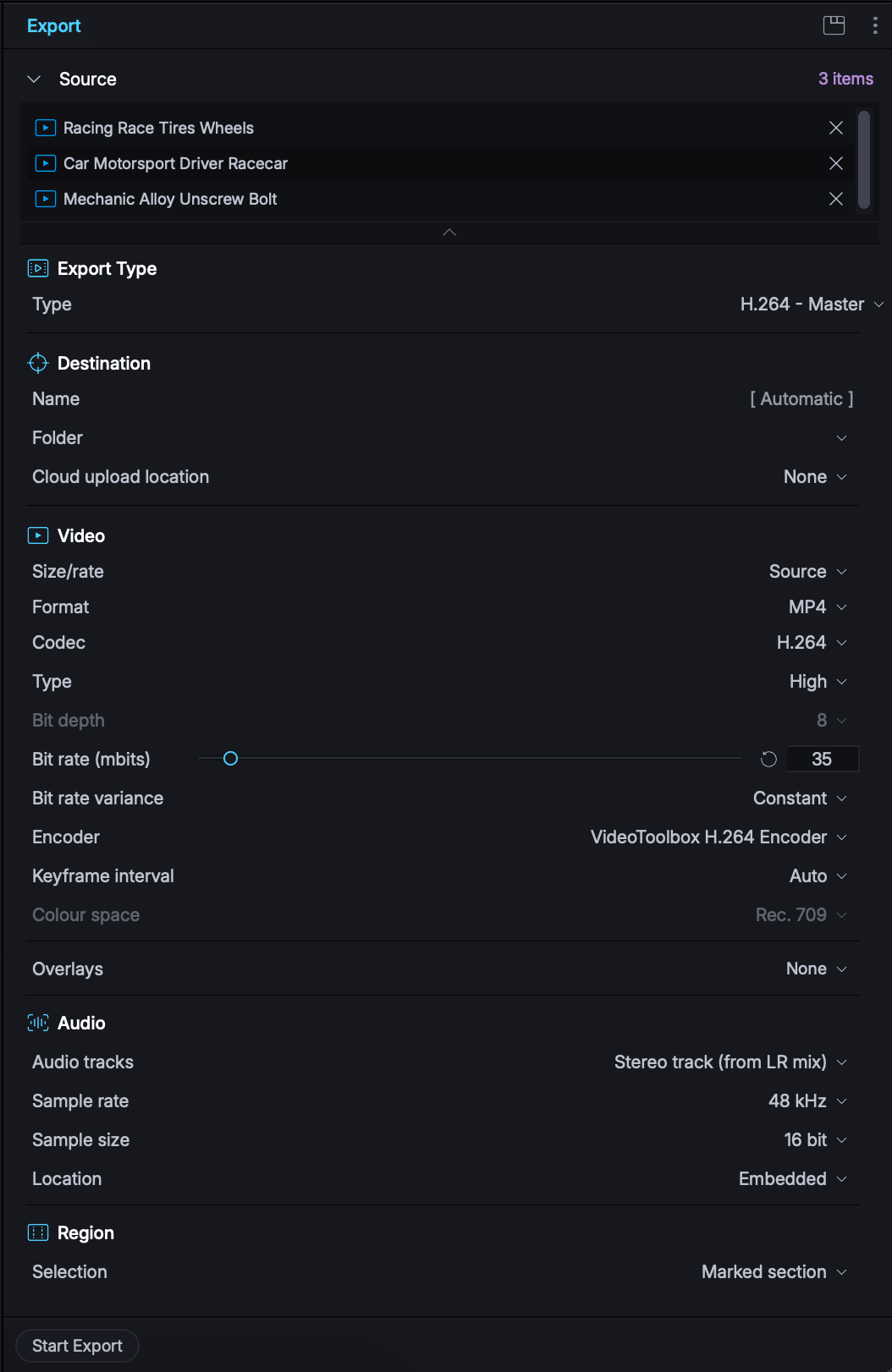
Export is now one panel with a 'source' list of what you are exporting, and a preset system you can drive straight from any clip or sequence.
- Queue several sequences, clips or subclips together in the Source Export list.
- System and user presets, each with Favourite and Auto start - an Auto start preset begins the moment you pick it from the menu.
- From Source matches the settings of the source clip.
- MP4 is the default format, and Twitter is now renamed X.
- An export matches what you see and hear in the timeline. Tracks switched off with their Monitor button, and a video solo, are left out - including when you export a sequence straight from a bin. Subtitles are burned in only when the subtitle track is monitored and Subtitles is ticked under Overlays.
Note that Portrait and 1080p export are now available on the Free plan.
The Colour Picker.
Knowledge Base.
A searchable Knowledge Base is built into the application and the Project Browser, so help is available without leaving Lightworks. It remembers the last article you read.
REST API.
System and Platform.
Lightworks\Preferences\UserSettings.txt, with a one-time migration on first launch; fresh installs keep data in your own Documents folder rather than Public Documents. On Linux it moves to ~/Lightworks/Preferences/UserSettings.txt. A setting changed in v2026.1 is not shared with older versions.
Updates and Fixes.
As well as all the features and updates listed above, hundreds and hundreds of fixes have gone into v2026 to create a more stable and robust platform.
Feedback.
Lightworks is here because of the community that gets behind it. If something in this release does not work the way you expect - or works better than you expected - we would like to hear about it.
Our moderators and developers read the forum every day: forum.lwks.com.