
A sequence is your edit: clips, audio, and effects cut together on a timeline of video and audio tracks. This article covers creating and opening sequences, how tracks work, and how to move around the timeline.
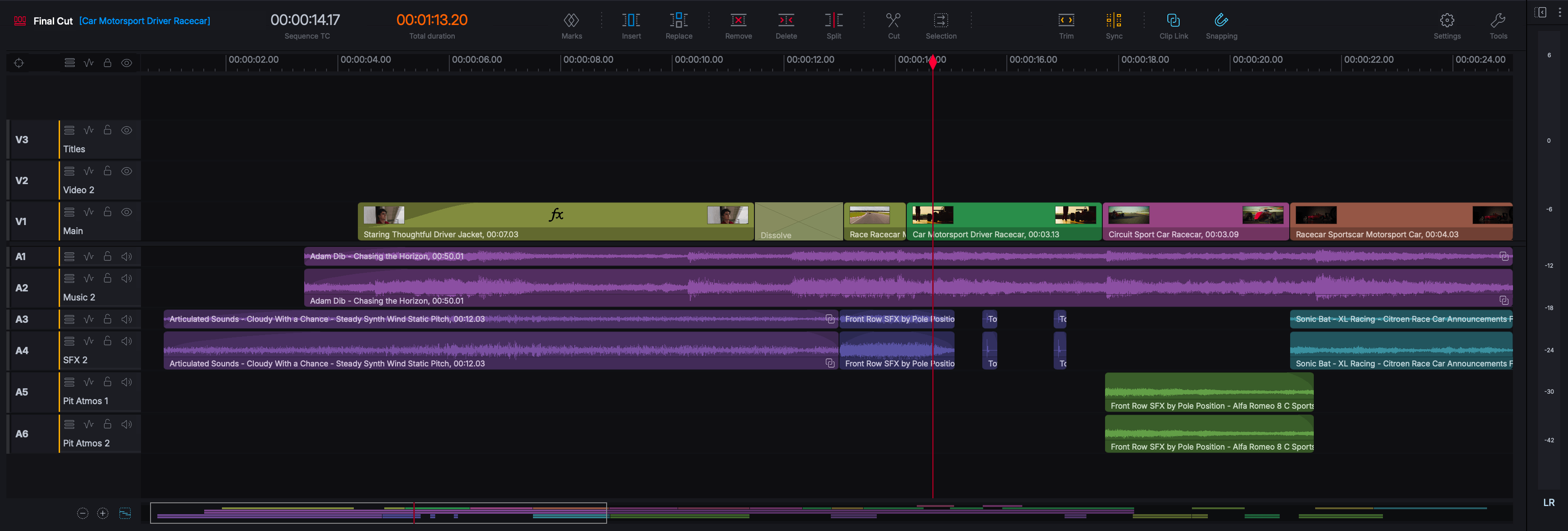
Creating a sequence
Every new project opens with an empty sequence ready in the timeline. You can create more sequences at any time:
- Right-click an empty area of a bin and choose New > Sequence.
- Or select some clips first and choose New > Sequence from selection to build a sequence from them.
- With a source clip open, marking a section and pressing Insert or Replace also creates a new sequence when none is open.
A brand new sequence is an Auto sequence: it has no frame rate until the first clip is added, then adopts a compatible format. The first clip you insert sets the sequence's output format (see Project settings reference).
Opening a sequence
Sequences live in the Sequences filter and any bins you file them in. To open one, double-click it or drag it into the sequence viewer. Its tracks appear on the timeline, ready to edit.
Understanding tracks
A sequence is built from stacked tracks:
- Video tracks (
V1,V2, ...) - higher-numbered tracks sit above lower ones, soV2coversV1. - Audio tracks (
A1,A2, ...) - play together through the mixer.
A sequence can hold many tracks (up to 24 video and 32 audio), plus effects tracks. Build up in layers: base video on V1, cutaways and titles above, dialogue and music on separate audio tracks.
Track headers
Each track has a header at the left with its controls. In v2026 the headers were redesigned and include:
- Abbreviated label (
V1,A1) - the full-height button down the left of the header is the Track Target. With none lit - the default - edits use every track, and a trim key trims the top clip under the playhead and its audio, as a click would. Click one to target that track specifically, and it lights in the theme accent colour. When you have clips selected, the target buttons reflect the tracks that are included, and while a trim is open it lights for every track in the trim that has media being edited. During a trim, clicking the target button for a track either promotes it so that the media is trimmed, or excludes it so that no media is trimmed and black is used to hold the track in sync (see Trimming). Your own targets come straight back when you deselect clips or the trim session ends. A locked track cannot be targeted, and its label dims. - Custom labels you can type over the default name; clearing your text restores the default.
- A Track Options menu for track-level commands.
- Keyframes (on/off), Lock, and Monitor (visibility/mute) buttons.
- A Track Sync strip - a slim amber line to the right of the track target button - shows whether the track will be kept in sync or not. With no trim open and Sync on, every unlocked track's sync indicator is lit. During a trim that ripples it shows what will actually happen - lit where the track will stay in sync, dark where it will not. A slip, slide or Move Cut has no ripple effect, so the strips stay dark (see Trimming).
- A PPM meter on audio track headers.
- Minimise / Expand to collapse or grow a single track's height.
The Lock and Monitor buttons share consistent modifiers:
- Click toggles the button for that track and its grouped tracks.
Cmd/Ctrl+click solos that track, making it the only one - only that track unlocked, or only that track visible or audible. Repeat it to put everything back.Alt+click is the same solo, widened to the track's associated tracks at the playhead, so a clip's video and audio are dealt with together.Shift+click resets that button on every track and forgets the saved state.
The Keyframes button has no solo, so click and Cmd/Ctrl+click both simply toggle it.
The Track Target button works a little differently, every track is already the inlcuded (on / targeted) by default:
- Click narrows the target to the clicked track and its grouped tracks (e.g. stereo pairs), or untargets it if it's already targeted. Toggling the the last target button off puts the tracks back into their default state - so everything is now included for edits or trims.
Cmd/Ctrl+click targets every other track exept the clicked on - a quick way to targe all tracks except one. Repeat it to go back.Alt+click narrows the target to the clicked track and also the sync to the selected tracks only.Alt+click more buttons to add or remove tracks. When the last track target button is toggled off, tracks are back to their default state and all included again.Shift+click resets the track target buttons back to their default state and clears your setup from memory.
What Lock protects
Lock is the one control that makes a track completely untouchable. A locked track takes no edit, no trim and no cut, is never brought along to hold sync, and is never selected. It also protects the things that live on a track rather than in it: audio levels and fades still display on a locked track but cannot be dragged, and the Cut tool refuses it even with Shift held.
Keyframes and lock are mutually exclusive, since together they would mean a track claiming to be editable while nothing could change it. Turning keyframes on unlocks the track, and locking a track turns keyframes off.
Tip: Lock is the reliable way to keep a track out of an edit. A track you have not targeted is still kept in sync when a trim or insert ripples - locking it leaves it out altogether.
Master track buttons
Above the track headers is a row of buttons that apply to every track at once, including FX tracks. Each works between two states: the default - nothing targeted, every track unlocked, visible and audible - and your own set-up. Clicking swaps between them: the first click saves your set-up and returns everything to the default, the next brings your set-up back. Shift+click clears that memory, returning everything to the default so you can start again.
| Button | Shortcut |
|---|---|
| Toggle all track targets | Ctrl/Cmd+1 |
| Toggle all track keyframes | Ctrl/Cmd+2 |
| Toggle all track locks | Ctrl/Cmd+3 |
| Toggle all track monitors | Ctrl/Cmd+4 |
Each master button lights while any track has that button on, so the master Track Target button, for example, tells you that some tracks are aimed at for editing, not necessarily all of them. With nothing targeted and no saved user state (e.g. after a reset), clicking a master button toggles every track. A Track Options menu also sits alongside the master track buttons for track-level options.
Track targeting
Targeting decides which tracks an edit affects. With nothing targeted - the default - edits use every track. When you insert or overwrite, for example, from the source viewer, the source tracks land on the targeted timeline tracks (top track if there are no targets set). Set targets in the track headers so your edits go exactly where you intend; the tracks you do not target are still kept in sync.
Track locking
Lock a track to protect it from accidental edits - locked tracks ignore edits and trims. Lock your finished dialogue or a music bed while you work on video above it.
Track visibility and mute
- For video tracks, the visibility toggle shows or hides that track's video in the output - including exports, which leave out a hidden track.
- For audio tracks, the mute toggle silences the track, and solo isolates one track so you hear only it. Solo state stays in sync with the audio mixer in both directions.
- The colours match their meaning: hide/mute shows red (like lock), solo shows yellow.
Track height and display options
You have fine control over how tracks are displayed:
- Individual track heights - set each track to Small, Medium, Large, Extra Large, or Auto, independently or for all at once.
- Default track height - choose the height new tracks start at (in Timeline settings).
- Add tracks above or below the selected track, and delete empty tracks to tidy up.
- Auto Add Tracks - adds enough tracks to take all of the source tracks when you edit.
- Drop Zones - the strip above the video tracks and below the audio tracks; material dropped there lands on tracks Lightworks makes for it (see Basic editing).
- Reorder tracks - move tracks up or down the stack.
Navigating the timeline
- Zoom with
Cmd/Ctrl+ scroll, which pivots smoothly around the playhead. - Scroll the tracks vertically with a plain scroll or swipe, and pan the timeline with
Shift+scroll or a horizontal swipe. What a plain scroll does is your choice - Mouse Wheel in Timeline settings offers Vertical Scroll (the default), Frame Nudge, or Previous / Next Event - and over the track headers it always scrolls the tracks. Precision scrolling gives high-resolution movement where the device supports it. - Timeline Map - a bird's-eye view of the whole sequence, shown in place of the scrollbar, for jumping straight to any section. It covers video, audio and subtitle tracks.
- Snapping - magnetic snapping to cuts, markers, and the playhead makes precise positioning easy (toggle it in Timeline settings).
- Dual timecodes - display two independent timecode readouts at once, such as sequence and source time.
More navigation and the timeline toolbar are covered in Timeline tools and commands.