
The viewers are where you watch your footage and your edit. Lightworks has two: the source viewer for reviewing clips, and the sequence viewer for playing back your sequence. This article covers how to play, scrub, zoom, and frame your video, plus the marks and timecode that drive editing.
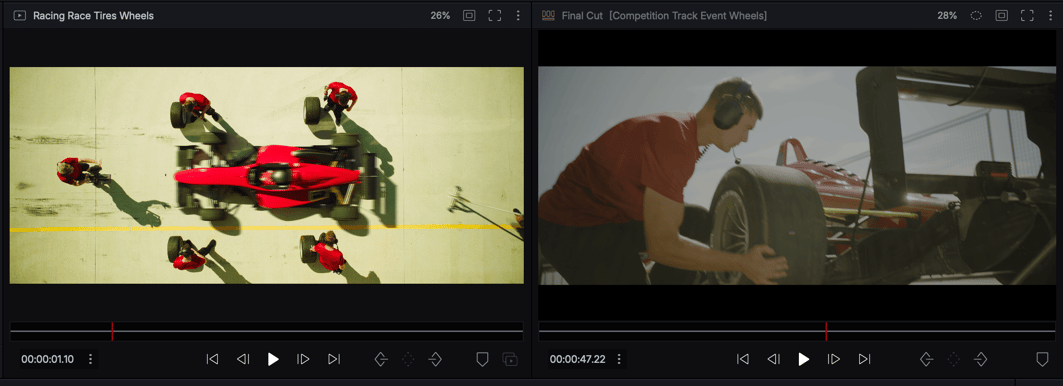
Source and sequence viewers
- The source viewer plays a single clip or subclip you're reviewing before editing it in.
- The sequence viewer plays your sequence as it stands on the timeline.
You can tell them apart by the coloured icon in each viewer's header - blue for source, red for sequence.
Each viewer is independent, so you can mark a clip in the source viewer while your sequence stays parked where you left it.
Stacked, separate, and tabbed viewers
How viewers are arranged depends on your layout:
- Stacked viewers - source and sequence share a single viewer area, giving the picture maximum screen space.
- Separate viewers - source and sequence side by side, the classic editing setup.
- Tabbed viewers - keep several sources - and sequences - open as tabs and switch between them; each tab shows an icon for its media type.
Layouts are covered in Layouts and workspaces.
Playback controls
You can drive playback from the transport controls under the viewer or from the keyboard. The J/K/L keys are the heart of Lightworks playback and are worth learning early.
| Key | Action |
|---|---|
Space |
Play / pause |
L |
Play forward (tap again to go faster) |
J |
Play in reverse (tap again to go faster) |
K |
Pause |
K + L |
Step forward one frame |
K + J |
Step back one frame |
Tip: Hold
Kand tapJorLto inch through footage frame by frame - ideal for finding an exact edit point.
Jogging, shuttling, stepping, and scrubbing
- Jog and shuttle through material with
J/K/L, or by dragging in the scrub bar. - Step one frame at a time with the arrow keys.
- Scrub by dragging the position marker in the scrub bar. Smooth scrub gives higher-resolution scrubbing on a mouse or trackpad.
- Jump to a position by clicking directly in the scrub bar.
The playhead, marks, and current time
The playhead (the current frame marker) shows where you are, and the current timecode is displayed with the viewer.
To select a section, set a mark in with I and a mark out with O. You often don't need an out point: mark the in, then leave the playhead where you want the section to end. This is called mark and park. Marking is used throughout Basic editing.
Viewer zoom
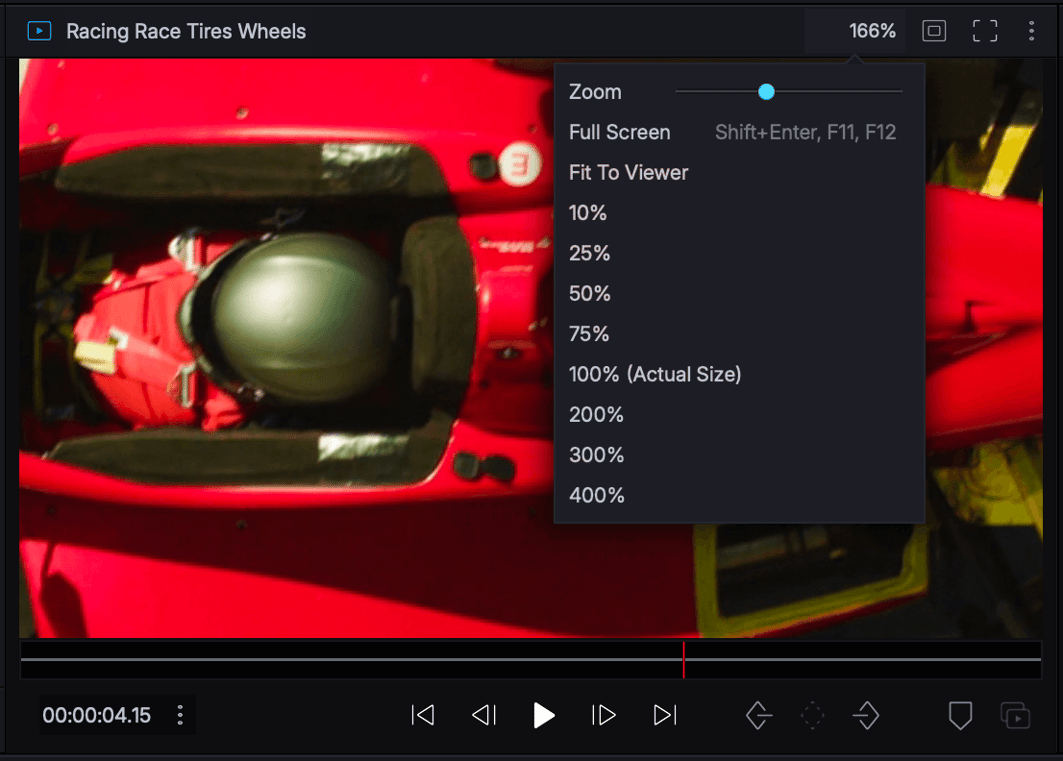
You can magnify either viewer from 10% to 400%, even during playback, to inspect fine detail. Source and sequence viewers zoom independently.
The default is Fit, which scales the image to the viewer. 100% shows the video at its actual size - one screen pixel per video pixel - and the other percentages are relative to that.
| Action | Control |
|---|---|
| Zoom in / out | Cmd/Ctrl + scroll |
| Pan the zoomed image | Cmd/Ctrl + drag |
| Toggle zoom / fit to viewer | Cmd/Ctrl + double-click |
The zoomed image moves independently of on-screen controls such as masks and overlays, so they stay put while you inspect.
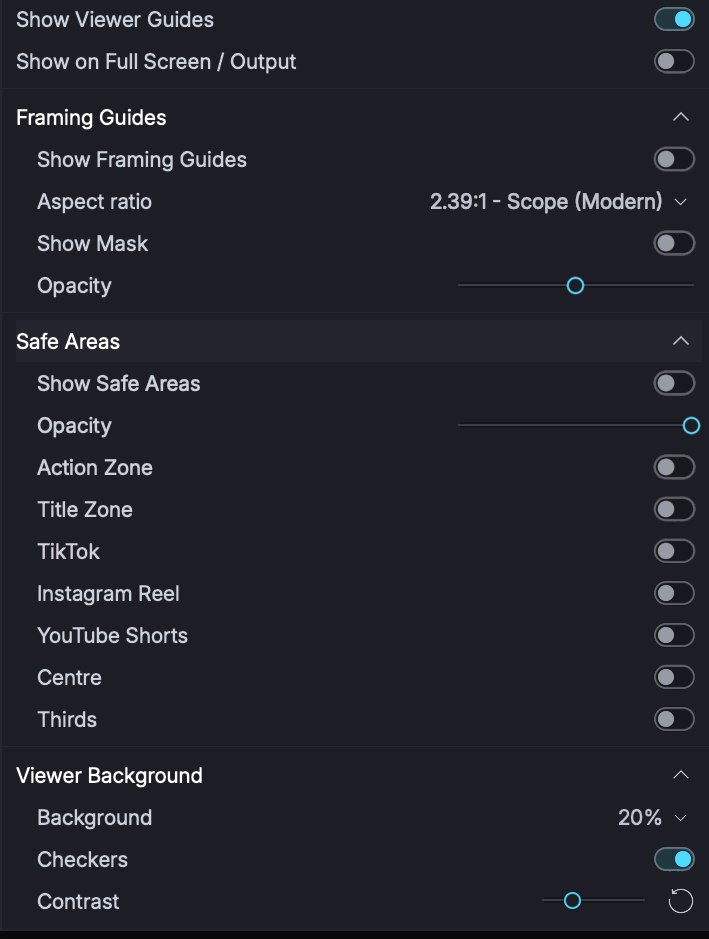
Viewer Guides: framing guides and safe areas
The Viewer Guides menu overlays professional composition guides:
- Safe Areas - broadcast-style Action Zone and Title Zone boundaries.
- Framing Guides - Film & TV aspect-ratio frames, plus Social Media guides for platforms such as TikTok, Instagram Reels, and YouTube Shorts.
- Thirds and a Centre crosshair for composition.
- A mask outside the selected frame, with adjustable opacity and its own on/off button for quick toggling.
Guides are toggled on or off, and can optionally show on the full-screen output too. They're display aids only - they don't change your media. To actually reframe for delivery, use the Reframe effect (see Effects overview).
Full-screen playback
Press F11 or F12 to toggle full-screen playback (Shift+Return also works). If you have a second display, Lightworks uses the extended display for full screen so your interface stays visible on the main monitor. Move the mouse to reveal the transport controls, and press the same key again (or click the close icon) to exit.
Tip: A second monitor of the same resolution makes full-screen review much more comfortable.
Playback quality and viewer background
- Playback quality - the viewer's Quality menu offers Automatic, Highest available, and Lowest available. Drop to the lowest (proxy) quality for smoother playback on demanding media.
- Viewer background - set the lightness of the area around the image (from black to white in steps), or switch to a chequerboard to judge edges and transparency.
- Subclip button - create a subclip directly from the source viewer.