
Lightworks is built for speed, and most of that speed comes from the keyboard. This article lists the shortcuts worth learning first, shows how to customise them, and covers the mouse and trackpad gestures and hardware control surfaces that make editing faster.
Note: The shortcuts here are the defaults. Lightworks lets you reassign any of them, so your keyboard may differ if you or someone else has changed them.
Essential keyboard shortcuts
These are the keys you'll reach for constantly.
| Key | Action |
|---|---|
Space |
Play / pause |
J / K / L |
Play reverse / pause / play (tap to go faster) |
I |
Mark in |
O |
Mark out |
M |
Add a cue marker at the playhead |
F11 / F12 (or Shift+Return) |
Toggle full-screen playback |
Marking and editing shortcuts
| Key | Action |
|---|---|
I / O |
Mark in / mark out |
W |
Trim in (incoming clip) |
E |
Trim out (outgoing clip) |
U |
Move cut |
Y |
Slip |
T |
Slide |
Core edit operations - Insert, Replace, Delete, Remove, and Split - are available directly on the timeline; see Basic editing and Trimming.
Timeline navigation shortcuts
| Key | Action |
|---|---|
| Left / Right arrow | Step the playhead one frame |
, / . |
Nudge the selected clip (arrows continue to nudge the playhead) |
< / > |
Nudge ten frames |
Alt + , / Alt + . |
Nudge by a number of frames you type |
Note: You can turn off nudging clips with
,and.in Timeline settings if you'd rather those keys did something else.
Track and behaviour shortcuts
| Key | Action |
|---|---|
1 / 2 |
Toggle edit state (targeting) for V1 / V2 |
3 to 9, 0 |
Toggle edit state for A1 to A8 |
Alt+1 / Alt+2 |
Toggle visibility for V1 / V2 |
Alt+3 to Alt+0 |
Toggle mute for A1 to A8 |
Ctrl/Cmd+1 to Ctrl/Cmd+4 |
Master toggles - track enable, keyframes, locks, monitors |
Ctrl/Cmd+M |
Toggle Clip Link |
Ctrl/Cmd+L |
Link / unlink the selected clips |
Ctrl/Cmd+N |
Toggle Snapping |
Ctrl/Cmd+T |
Toggle Smart Trim |
Track shortcuts follow the track number, not its position on screen, so 1 always acts on V1 however the tracks are ordered. Shift+click on a master button, or the matching button in a track header, resets that control on every track (see Sequences and timelines).
Customising keyboard shortcuts
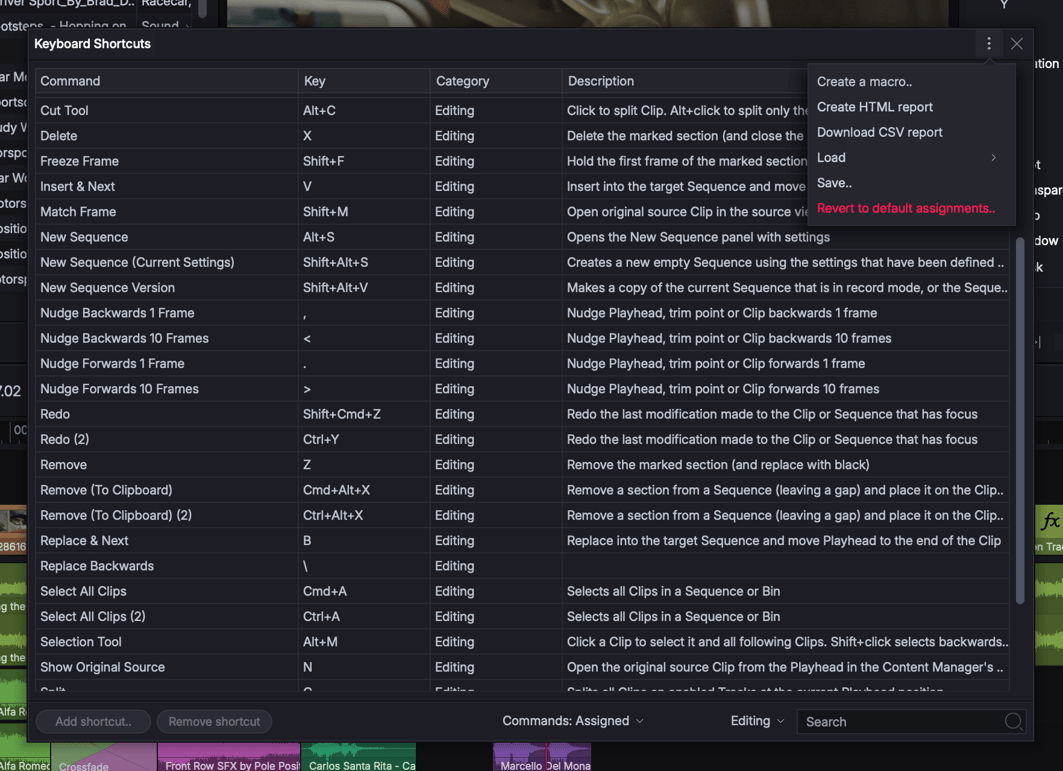
You can remap shortcuts to suit your workflow, including matching habits from another editor.
- Open the Keyboard Shortcuts panel.
- Find the command you want to change - commands are grouped by category, and you can search.
- Assign the key or combination you'd like.
Tip: If you're coming from another NLE, remapping a handful of playback and marking keys is usually enough to feel at home.
Mouse and trackpad
Lightworks supports a standard two-button mouse with a scroll wheel, and makes good use of modern trackpads.
| Action | Control |
|---|---|
| Zoom a viewer | Cmd/Ctrl + scroll |
| Pan a zoomed viewer | Cmd/Ctrl + drag |
| Toggle viewer zoom / fit | Cmd/Ctrl + double-click |
| Zoom the timeline | Cmd/Ctrl + scroll (pivots around the playhead) |
| Scroll the timeline's tracks | Scroll or swipe (always over the track headers) |
| Pan the timeline | Shift + scroll, or a horizontal swipe |
What a plain scroll does over the tracks is your choice: Mouse Wheel in Timeline settings offers Vertical Scroll (the default), Frame Nudge, or Previous / Next Event. Scroll speed and direction are set in the same place. Where there is nothing left to scroll, the wheel nudges frames rather than doing nothing.
Precision scrolling gives smooth, high-resolution scroll and zoom on mice and trackpads across Windows, macOS, and Linux, and smooth scrub gives finer scrubbing when you drag in a viewer's scrub bar.
Control surfaces and jog/shuttle devices
For hands-on control, Lightworks works with dedicated hardware:
- The Lightworks Console (Pro) - a USB control surface with transport, marking, and editing keys plus a jog/shuttle paddle.
- Mackie-compatible mixing consoles (Pro) - MCU and extenders, for adjusting your audio levels with real faders.
These complement the keyboard rather than replace it, and are especially useful for long-form editing and audio work.
Note: Availability of control-surface hardware and the exact supported devices can change between releases - check www.lwks.com for current details.
Tips for faster editing
- Learn
J/K/Lfirst - they do the bulk of playback and review. - Keep your hand near
IandOso marking becomes second nature. - Use right-click context menus to discover commands, then learn their shortcuts.
- Set up a layout per task (see Layouts and workspaces) and switch with layout tabs.