
Exporting turns your sequence into a finished file. Lightworks always exports from your original, full-resolution media (not proxies).
In v2026 the whole workflow is gathered into a single, streamlined Export panel, with export presets - saved combinations of format, resolution and quality settings that turn common deliveries into a single click export.
Choosing what to export
What you can export. By default, Lightworks exports your current sequence, but you can pick any item from the project's contents - a sequence, a clip, or a subclip.
How to start. Right-click the item, or open the Export panel directly. You can export the whole item or just a marked section on the timeline to deliver just part of a sequence.
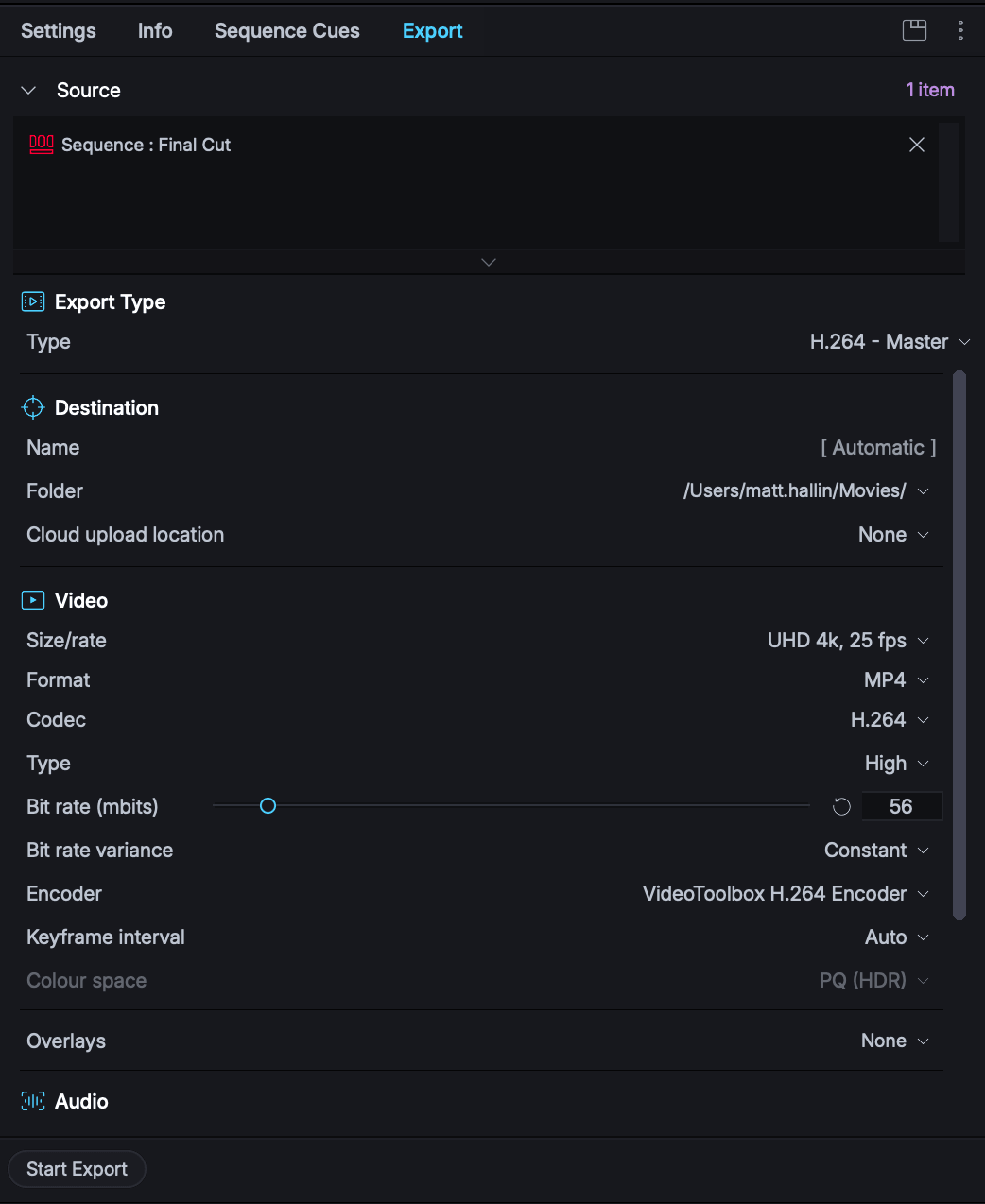
The Export panel
The v2026 Export panel combines everything in one place:
Export presets
- Presets column with ready-made setups for common deliveries.
- Pick a preset and every setting is filled in for you based on your source material.
- Switch to Custom to configure settings manually, save your own presets.
Source List
- A collapsible Source area, so you can add several sequences, clips, or subclips and export them together (see Batch export and background tasks).
- Drag and drop is supported.
The Export layout is dedicated to reviewing media and preparing deliveries. It keeps the source list and your content in sync - loading a clip or sequence into the viewer automatically adds it to the Export Source list - and the Project Contents footer gains three dedicated buttons:
- Add to Export List - adds the selected clips or sequences (or, with nothing selected, whatever is loaded in the source viewer).
- Clear Export List - empties the list; a refresh icon restores the default export source.
- Reveal Timeline - loads the current active sequence into the viewer without hunting for it.
Quick exports with presets
When you just need a standard file fast, you don't have to open the full Export panel at all: right-click a clip or sequence, choose Export, and pick a preset. Presets set to auto start begin exporting immediately. Reach for the full Export panel when you need control over format, resolution, or preset settings.
Export presets
Presets save you setting things up each time:
- System presets cover common delivery targets out of the box.
- User presets save your own settings for reuse.
- Mark a preset as a Favourite for quick access, or set Auto start so it begins exporting immediately when chosen - including from the right-click Export menu and the viewer's cogs menu.
- Same as Source automatically matches the export settings to the source clip's format.
File formats and codecs
Lightworks exports to a range of formats. MP4 is the default and the right choice for most online and general-purpose delivery. Professional and broadcast codecs are covered in Professional delivery.
Note: The range of available export formats and codecs depends on your licence - the Export panel only offers what your plan includes. Professional and broadcast delivery codecs require Pro.
Resolution and frame rate
Set the resolution and frame rate of the export, or use Same as Source to match the material. Exporting at your sequence's native size and rate is usually best; scale down (for example to 1080p) only for delivery targets that need it.
Audio export options
Your mix is exported with the picture. Make sure your levels are set in the mixer and the master isn't clipping before you export (see The audio mixer). For separate audio deliverables such as stems, see Professional delivery.
Export location and naming
In the destination section - choose where the file is saved and give it a clear name - include the project, version, and format so deliverables stay organised (for example MyFilm_v3_1080p.mp4). Exports run as background tasks, so you can keep working while they render (see Batch export and background tasks).